
Changelog for 6.3.0 (devel)
Version 6.3.0 [DEVEL] (rgerhards), 2011-06-01
- introduced new config system
http://blog.gerhards.net/2011/06/new-rsyslog-config-system-materializes.html
new rsyslog config system materializes
The past weeks we have worked pretty hard on the new rsyslog config system. The legacy system was quite different from what you expect in modern software. Most importantly, the legacy system applied directives as the config file was read, which made it extremely hard to restructure the config file format. That also prevented features like privilege drop from working fully correct.
We have now basically changed the config system so that there is a clear difference between the config load phase and applying the config. Most importantly, this means privilege drop now works correctly in all cases. Other than that, there are no user-visible enhancements at the moment. However, the internal plumbing has changed dramatically and enables future change. Most importantly, this finally creates a path to a new config language, as we now have a clear interface as part of the in-memory representation of the config, which is config language agnostic.
With this initial release, there may still be some things inside the core that can be optimized. Right now, the system aims at the capability to have multiple config objects loaded (but not active) at the same time. However, there are some data instances where this is not cleanly followed in order to reuse some code. This is not a problem, because the rest of the rsyslog engine does not support dynamic config reload (and thus multiple configs at runtime) at all.
Also it must be noted that the current code is quite experimental. So there is some risk involved in running the initial 6.3.0 version. However, all dramatic changes were made to the config system. That means if the system initializes correctly, it will most probably run without any issues. The risk window is constrained to the initial startup, what should be quite controllable. Users that use privilege drop are advised to check that their configurations work as expected. The previous system did some initialization with full privileges. This is no longer the case, except for modules that actually require full privileges (e.g. imtcp to bind privileged ports). Most importantly, files are now created with dropped privileges right from the beginning. I expect that some (unclean) configurations will run into trouble with that. The good news about that is that they would run into trouble with older releases as well, but only after a HUP. Now things break immediately, what makes them much easier to diagnose.
Using rsyslog mmnormalize module effectively with Adiscon LogAnalyzer
Using the mmnormalize module in rsyslog is a bit complicated at first. We want to describe in this article how to set up the basic components for using log normalization. In addition to that we will show how to configure these components so messages will be split into pieces of information. These pieces of information should then be written into a database for review with Adiscon LogAnalyzer.
This guide has been tested with rsyslog v5.8.0 and liblognorm 0.3, libee 0.3.
The goal of this guide is to have a setup, that will have a message parsed by the normalizing tool, put some content of the message into specific properties. These properties will then be filled into a special database format, which will should be reviewed by Adiscon LogAnalyzer.
For using normalization we need the following:
- rsyslog
- liblognorm
- libee
- libestr
In the further process of the article we need additional elements:
- apache webserver with PHP5
- mysql database (usually with phpmyadmin)
- Adiscon LogAnalyzer
Step 1: Setting up rsyslog and log normalization
First of all we need to setup rsyslog for log normalization. So before installing rsyslog, we will install liblognorm, libee and libestr. They can be installed according to this guide. rsyslog can now be installed. We assume you have downloaded and extracted a tarball from the rsyslog download page. Change into the directory you installed rsyslog in. Now use the following commands to setup rsyslog correctly:
./configure --libdir=/lib --sbindir=/sbin --enable-mysql --enable-mmnormalize
make
make install
If everything is correct, the installation procedure should complete successfully. We can now start configuring rsyslog itself. We need a configuration that looks like this:
$ModLoad immark
$ModLoad imuxsock
$ModLoad imklog
$ModLoad mmnormalize
$ModLoad ommysql.so
$ModLoad imudp.so
$UDPServerRun 514
$mmnormalizeUseRawMSG 1
$mmnormalizeRuleBase /rsyslog/rulebase.rb
*.* :mmnormalize:
$template database,"insert into normalized (date, uhost, msgnumber, protocol, ipin, ipout, portin, portout)
values ('%$!date%', '%$!uhost%', '%$!msgnumber%', '%$!protocol%', '%$!ipin%', '%$!ipout%', '%$!portin%',
'%$!portout%')",SQL
*.* :ommysql:172.19.3.17,syslog, test, test;database
That is all for our rsyslog config. Looks pretty complicated right now. Basically, we load all necessary modules at the top. After that we start the UDP syslog server. It is needed to receive the messages. The next 3 lines are the parameters to initiate the normalization of messages. We declare, that the raw message should be used. Our rulebase for the normalization lies in the rsyslog directory (this path has to be changed if your directory lies somewhere else). And after that, we tell rsyslog to use normalization on all messages. The next line describes the template for the processed message. In the end, there should be a sql insert statement that puts all the parsed variables into their corresponding fields in the table “normalized”. The last line is finally the action that makes rsyslog write all messages (the ones created by the template – the sql statement – into a remote database.
After the configuration, we still need to setup a rulebase. This is done in a separate file. For our example, the rulebase should be the following file: /rsyslog/rulebase.rb
The file should look like this:
rule=:%date:date-rfc3164% %uhost:word% %tag:word%  %notused:char-to:x3a%: %msgnumber:char-to:x3a%: access-list
inside_access_in permitted %protocol:word% inside/%ipin:ipv4%(portin:number%) ->
outside/%ipout:ipv4%(portout:number%) %notused2:char-to:]%]
The rule is basically one line. It might be shown otherwise here due to restrictions of the webdesign. It is basically a format of a message. The different parameters of a rule are shown in a different guide. The rule we have here should resemble the following message:
May 16 07:23:09 BHG-FW : %ASA-4-106100: access-list inside_access_in  permitted tcp inside/10.200.22.183(2969) ->
outside/67.192.232.82(80)  hit-cnt 1 first hit [0x48e9c345, 0x386bad81]
If you want to have multiple messages, where the format differs, you need multiple rules as well of course. The rules must be as precise as possible to resemble the message. If a message does not fit any listed rules, it will not be processed further. Something else that needs to be pointed out, is to keep the rules variable enough as well. Like in our example, there are some parts that will be the same for every message of this kind. Other parts might be with different content. And even if we do not need the content further, it should be put into a variable. Else the message might again not fit to the rule.
Step 2: Setting up the database
We suppose, that you already have a server with a database and webserver installed. The installation of the components has to be made according to the instructions given by the manufacturer of the software. Therefore we cannot give any examples for that.
But we need a specific database scheme for our example here. So we need to show this at least. As you have seen before, we have some specific parts of the message filled into properties. These properties should be written to the database. So here is the basic SQL statement to create the table according to our needs:
CREATE TABLE normalize
(
ID int unsigned not null auto_increment primary key,
date datetime NULL,
host varchar(255) NULL,
msgnumber varchar(20),
protocol varchar(60) NULL,
ipin varchar(60) NULL,
ipout varchar(60) NULL,
portin int NULL,
portout int NULL
)
You can execute this statement as you like. It is currently designed for a MySQL database, so you might need to change some bits if you are using a different database.
3. Using Adiscon LogAnalyzer with this database
Adiscon LogAnalyzer can be used to review the data from this database. Installation of Adiscon LogAnalyzer is shown here. Please note, that we will need the admin center. So please think of creating a user database when installing.
Point your browser to your Adiscon LogAnalyzer installation. Now we need to go to the admin center. There we have to set some parts to fit our custom format.
Edit Fields
First, we need to add some Fields. We need to do this, so we can use the custom fields in our database with LogAnalyzer. By default, the list of fields only reflects basically the MonitorWare Database Scheme. When clicking on Fields in the Admin Center, a list of the currently available fields will be shown:
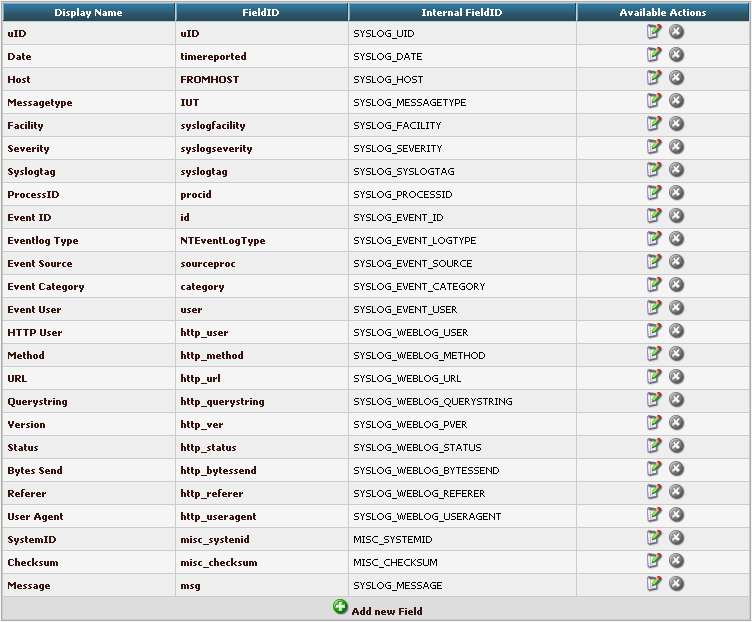
By clicking on Add new Field, we can create a new Field.
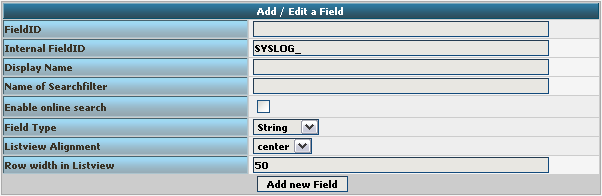
We need to create 7 new fields only, though we have 8 custom fields in the table. Since date is the same, we can use the already formatted field. So we only need to create the fields for host, msgnumber, protocol, ipin, ipout, portin and portout.
Basically, the Field details should look like this:
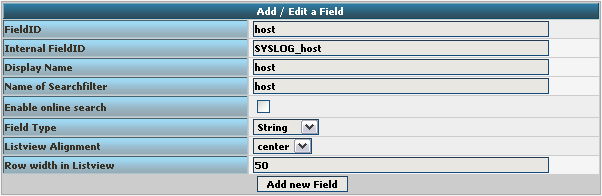
To finally create the Field, click on the button “Add new Field”. Now the list should appear again with the newly created Field. Repeat this step for the other fieldnames as well.
Edit DBMappings
In conjunction with the Fields which are only for the internal use in Adiscon LogAnalyzer, we need to create a custom database mapping. Therefore go to DBMappings in the Admin Center. You will see a list of the currently available database mappings.
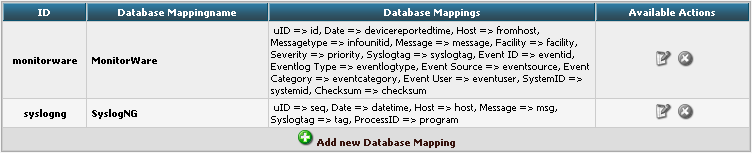
Click on Add new Database Mapping:
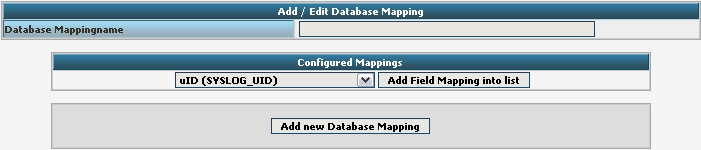
Here we need to tell Adiscon LogAnalyzer, which Field we created depends on which database field. Give your database mapping a name first. After that, choose the Fields we need from the dropdown menu and click on “Add Field Mapping into list”. The final step will be to enter the database field names into the list. It should now look like this now:
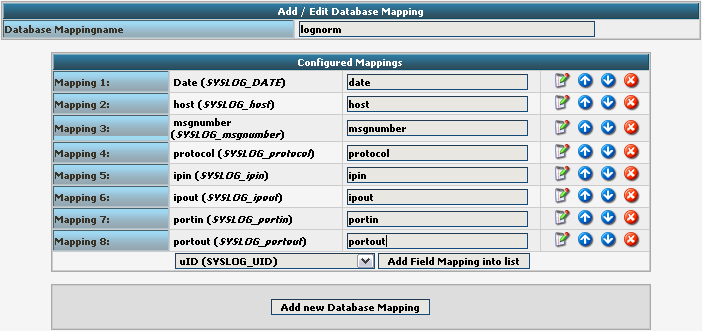
Finally click on “Add new Database Mapping”. This will save the mapping and get you back to the list of DBMappings.
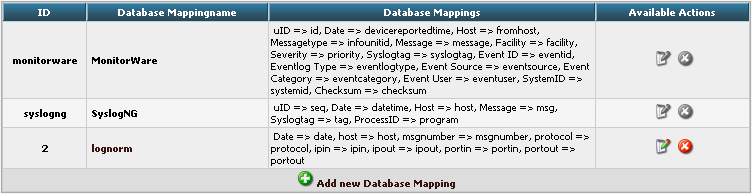
Edit Views
The next step we need to adjust is the Views. In Views you can configure, what LogAnalyzer should show. This is related to the data that is stored in the database. Basically, a View should represent the kind of logs that are stored. For example if you use the View for Windows Event Logs, but have a database where Linux syslog is stored, many Fields will be shown as empty, because they are not filled like from Windows Event Logs. Therefore we need a custom view.
You will get there by clicking on Views in the Admin Center.

There are already pre-configured Views for Windows EventLog, Syslog and Webserver Logs. We need a completely different View though. A new View can be configured by clicking on “Add new View” at the bottom of the list.
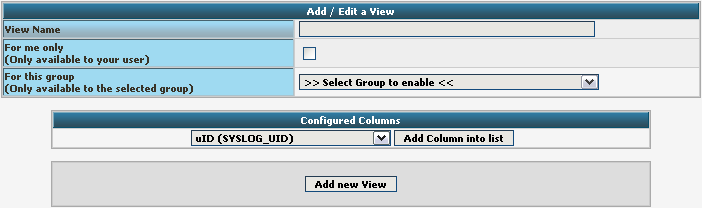
You need to give your view a name. If you want, you can restrict the use of this view to certain users or groups, but we will skip that for now. The most important part is to select the Fields that should be displayed. This is done at “Configured Columns”. Before clicking on “Add new View” it should look like this:
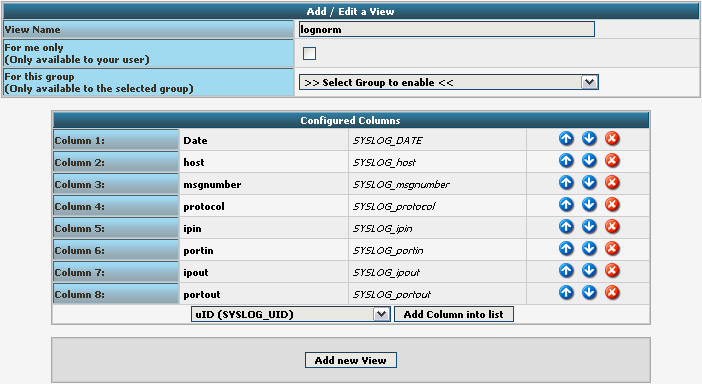
After clicking the button, the new View should appear in our list.
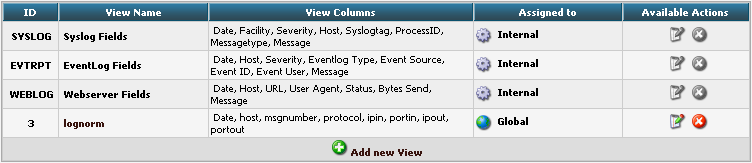
Edit Sources
Finally, we need to create a Source. When installing Adiscon LogAnalyzer, you can already configure a Source. For our example, we need to create another Source. Therefore go to Sources in the Admin Center.

You will see a list of the configured Sources. It currently holds one Source. By clicking on Add new Source you can create another one.
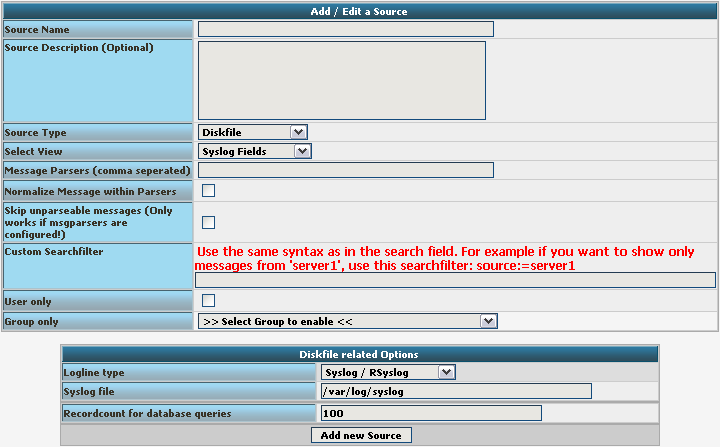
Basically, we need to insert a Source Name. If you want, you can also create a description. Change the Source Type to MYSQL Native. You can also select a default View. Choose our lognorm View we created earlier. No more general options need to be set. If you want, you can again restrict the source to a user or group.
We still need to change the database Type options. As you can see, the fields have changed by setting the Source Type to MYSQL Native. As table type choose the lognorm type we created before. Insert the details as your database needs them. The complete form should look like this now:
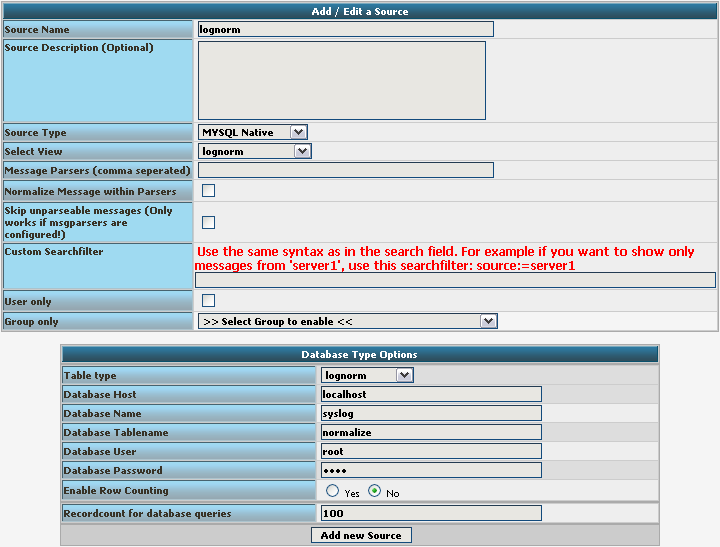
Finish the new Source by clicking on Add new Source. It should now appear in the list.

Final Thoughts
Though this scenario seems very complex it shows in the end how easy some things can be afterwards. This setup shows exactly, how different products from the Adiscon product line can work together. And we have a good example for how normalizing works.
Why does imuxsock not work on Solaris?
When configuring rsyslog on Solaris, you might not be able to use imuxsock. When starting rsyslog, the following message will appear if imuxsock is configured:
rsyslogd: imuxsock does not run because we could not aquire any socket
The reason is, that imuxsock can be used to monitor unix sockers, but it does not monitor the system log “socket” from Solaris, because it works in a different way. Instead of loading the imuxsock module in your rsyslog.conf you must use imsolaris. You only need to load imuxsock if you want to monitor other unix sockets.
Using a strgen module to write into a database
In many cases, log messages have to be transformed. This can be done in various ways with the property replacer for example. But processing messages this way can be rather slow, since the transformation part is no native code. In this case, strgen (string generator) is the way to go. A string generator is a separate plugin, that will be loaded in rsyslog. It provides a native C interface for template generation and thus speed up message transformation. String generators are not a very easy thing to create yourself. But Adiscon happily offers this as paid service to support the rsyslog project.
A string generator usually takes a message, that is in a certain format and transforms it into another format. That is where the speed bonus comes into play, since there is no dynamic message transformation.
In this example we want to show how a string generator is used that has been created for a customer. Basically, the string generator takes a message and transforms it into a specific MySQL INSERT statement to write the message into a database with a different database scheme. The database scheme is customer specific as well, so this is rather not usable by someone else. But the steps shown can be applied to every other strgen as well.
To test the correct transformation of messages, we can write messages into a file as well. But, this is in this case just to check the correct output. The file should then hold a SQL INSERT statement for every message that has been sent.
What we need
Basically we need a linux system. The steps will be described with a installation of Fedora 13. If another system is being used, some paths need to be changed. Please note, that rsyslog is already the default syslog daemon here. But we need a newer version. If the sysklogd or another syslog daemon is still present on the system you are using, you need to permanently disable it.
The setup
Our setup should reflect a configuration of rsyslog, which is able to receive syslog via UDP. The messages that are received should be “filtered” for several IP addresses. The message with IPs that evaluate the filter to true will be discarded (description in the configuration part). All other messages should be transformed into SQL statements via the strgen plugin and then injected into a MySQL database on the same system.
On this system we need the usual suspects.
git
mysql-devel
pkgconfig
libtool
libxml2-devel
zlib-devel
These are most likely needed and should be installed. Further, you need a server that holds the MySQL database. Perhaps you have this installed on the same server. In that case, you need to check the MySQL documentation for instructions. We will only describe the installation of rsyslog here. For our example, the MySQL server will be on the same system.
Please note, that the syslog messages that can be processed by the strgen plugin are very specific and the created INSERT statements do only fit a certain database scheme.
Setting up rsyslog
Basically, we need to set up rsyslog. The strgen plugin we will use is called “sm_cust_bindcdr”. It has been released in the rsyslog v5.8.0 stable release. But, due to some changes afterwards, we need to use the latest v5-stable version from the git repository. Assuming the above mentioned packages are installed we will start directly.
Open up a terminal with root permission and change to the folder which should later hold the rsyslog files. In our case we will install rsyslog directly in the user directory, though this is not recommended. When you have switched to that folder, type the following:
git clone git://git.adiscon.com/git/rsyslog.git
You will see, that the current state of rsyslog development will be downloaded from the git repository into a folder rsyslog. By default, the downloaded git repository does reflect the current master branch (v6-devel currently). Therefore we need to switch to the newly created folder rsyslog and change the branch by doing the following:
git checkout v5-stable
You should get a confirmation message, that the branch has been switched accordingly. Now we can start installing rsyslog. This is done by using the following commands one after another:
autoreconf-vfi
./configure --libdir=/lib --sbindir=/sbin --enable-mysql --enable-smcustbindcdr
make
make install
Basically, we have rsyslog v5.8.0 stable now installed.
Configuring rsyslog
We are now ready to configure rsyslog. Open the configuration file for rsyslog. It is located here:
/etc/rsyslog.conf
Usually, this is a basic configuration that has been shipped with the operating system. In the end, our configuration should look somehow like this (the minimum for our scenario):
$ModLoad imudp.so
$ModLoad ommysql
$ModLoad sm_cust_bindcdr

$UDPServerRun 514
$sgcustombindcdrallowedip 10.0.0.51
$sgcustombindcdrallowedip 10.0.0.52
$sgcustombindcdrallowedip 10.0.0.53
$template sm,=Custom_BindCDR,sql
*.* :ommysql:127.0.0.1,Data,test,pass;sm
At the top, we have the modules loaded which we need. The first module is for receiving UDP syslog. The second module handles the MySQL capabilities of rsyslog. The third module is our custom string generator plugin.
After that, the UDP receiver is enabled. We will use the default UDP port 514.
Now we define the “filters”. We will use the configuration $sgcustombindcdrallowedip for this. This directive is included in the strgen plugin and only available if the plugin was loaded. Basically we define a IP, which will be compared to the IP in the syslog message. If the IP is the same, the message will be discarded. If the IP is different, the message will be further processed. Behind this is a system where some service is offered. Some IPs are allowed to do that for free, others are not. Those which are not allowed to use the service for free are collected in the database for later billing. This directive can be used multiple times with different IPs. Basically the only limit for the amount of filters is either the address space or the main memory of the machine.
After the filters, we define a template which is used for the final processing. Basically, this works like a regular template. We define a custom name for the template (“sm” in this case) and after the comma we tell the template what it looks like. In this case, we use the template name of the strgen plugin – “Custom_BindCDR,sql”. The name is introduced by “=”. This is very important. If this is missed out, the template will not know, that it has to get the format information from the plugin. You could also say, that you call a template in a template.
Finally, we have our action. This is the last part of the configuration. Basically, we want to forward all messages (“*.*”) to our MySQL server. We access the server by defining its address, the database name, user and password. The final part of this statement is “;sm” which calls the template.
That’s it. Save the configuration file now and exit your editor.
Getting rsyslog to run
We have rsyslog installed and configured now. The only thing left to do is to restart rsyslog. Right now, the old version is still running. When we restart rsyslog, the new installation with our new configuration file will be loaded. Now use the following command to stop and start rsyslog:
service rsyslog restart
This works at least in Fedora. If it does not work for you, you can as well use this:
/etc/init.d/rsyslog restart
Final thoughts
We have now achieved what we wanted. We can receive our messages, filter and transform then and inject them into our database. The important thoughts were on the string generator. The format of the messages cannot be changed later. The problem in this case is the common use, which is virtualy not possible. The module will only work with messages of a certain format and create a INSERT statement that has a very customer specific form as well. So it will only work if the correct messages are received and the database scheme fits as well. All other mesages will be dropped.
Adding the BOM to a message
In some environments where no regular character sets are used, it comes to problems with encoding and decoding messages in the right format. There is a special case, with japanese characters not correctly being decoded in a hybrid environment. The case is the following:
We have a linux machine with rsyslog, that is sending messages via syslog to a Windows machine running WinSyslog. The problem is, that though the messages were encoded as UTF8, WinSyslog decoded them in a different format. The result was, that messages were unreadable.
The solution is a bit tricky though. At least for beginners. We need to add the BOM (Byte Order Mark) to the messages that are being sent. The BOM will tell the software that is receiving the messages, that the format is UTF8. Thus the receiver will decode the message correctly and it is readable again.
To achieve this, we need the following for our example from above:
- The language of the linux operating system
- rsyslog (v5.7.10 beta or later) – this is the first version where the $BOM system directive can be used
- WinSyslog (10.2a or later) – in this version, the decoding in conjuction with the BOM has been introduced
- alternatively to WinSyslog, MonitorWare Agent (7.2a or later) can be used
Part 1: Configuring rsyslog
We need to configure rsyslog to insert the BOM into a message. In our example, we will keep this very simple, since we only want to forward messages to a different syslog server. The configuration should look like this:
$ModLoad immark.so
$ModLoad imuxsock.so
$ModLoad imklog.so

$template mytemplate,"<%PRI%>%TIMESTAMP:::date-rfc3339%%HOSTNAME% %SYSLOGTAG:1:32%%msg:::sp-if-no-1st-sp%%BOM%%msg%"
$ActionForwardDefaultTemplate mytemplate
*.* @x.x.x.x:514
The $ModLoad directive loads the modules. Therefore it is at the top. The modules loaded here are the basic modules needed for local logging. Of course you can set different modules, too.
With $template we will define the format of the message that we will be sending. Here “mytemplate” is the name of the template. The rest after the comma is the format for default syslog forwarding. Only difference is the %$BOM% that is used right before the message. It works as a identifier for the receiver for the encoding format. That is the most important part. Please note, that the template shown here is in one line. A linebreak is only shown due to website limits.
Since we do nothing else than forwarding here, we use $ActionForwardDefaultTemplate to make our template default for every forwarding action we might use. The directive has to be followed by the template name of course.
Finally, we have our action. This tells rsyslog to forward all messages via UDP to our central syslog server. Instead of x you need to use the IP of course. The port is 514.
You might have a different configuration as basis and might adapt things. Instead of using the template as default for all forwarding rules, you could instead add a semicolon after the port in the action and add the template name here. Then only this specific action will use the template.
Part 2: Important configuration part in WinSyslog
Basically, you can use any WinSyslog configuration. The only thing you should change in any case isthe output encoding format in the actions you use. In all output actions, you can define the Output Encoding Format. You must use “Unicode (UTF8)” here.
We will show some examples of the most commonly used output actions:
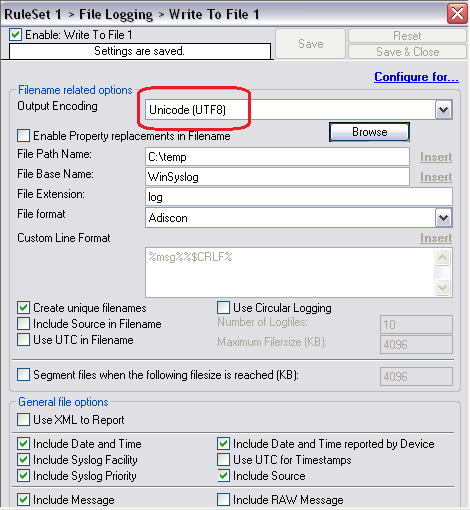
Img 1: Here we see the Write to File action. This action will simply write the log messages into a file.
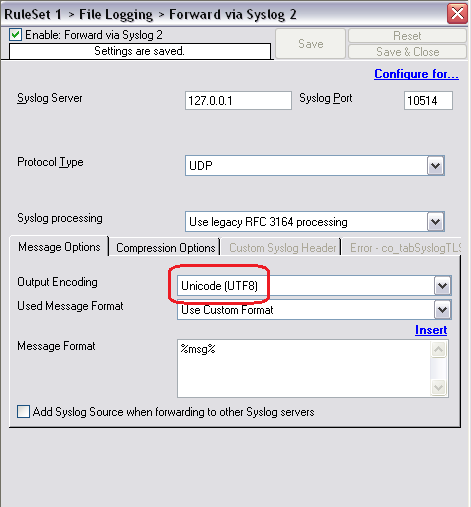
Img 2: This shows the Forward via Syslog action.
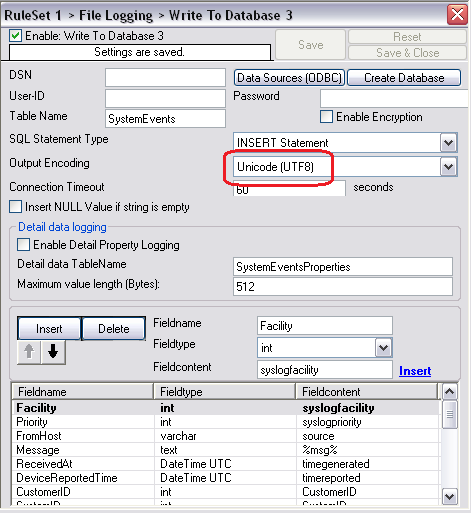
Img 3: Here, the Write to Database action is shown.
As shown in the screenshots, the output encoding can be set for all actions. This is mandatory and can be set for all output actions where this is necessary.
Conclusion:
We need to keep in mind, that with certain character sets, problems could occur when encoding and decoding in UTF8. Usually, the problems occur when decoding the message, because the receiver can not really identify the message as UTF8. In our case, the encoding detection would have gone via the Windows API and had as result SHIFT_JIS, which is totally wrong. The result were messages that unreadable. That is, why we need to have BOM support in both sender and receiver.
Storing and forwarding remote messages
In this scenario, we want to store remote sent messages into a specific local file and forward the received messages to another syslog server. Local messages should still be locally stored.
Things to think about
How should this work out? Basically, we need a syslog listener for TCP and one for UDP, the local logging service and two rulesets, one for the local logging and one for the remote logging.
TCP recpetion is not a build-in capability. You need to load the imtcp plugin in order to enable it. This needs to be done only once in rsyslog.conf. Do it right at the top.
Note that the server port address specified in $InputTCPServerRun must match the port address that the clients send messages to.
Config Statements
# Modules
$ModLoad imtcp
$ModLoad imudp
$ModLoad imuxsock
$ModLoad imklog
# Templates
# log every host in its own directory
$template RemoteHost,"/var/syslog/hosts/%HOSTNAME%/%$YEAR%/%$MONTH%/%$DAY%/syslog.log"
### Rulesets
# Local Logging
$RuleSet local
kern.*                                                 /var/log/messages
*.info;mail.none;authpriv.none;cron.none                /var/log/messages
authpriv.*                                              /var/log/secure
mail.*                                                  -/var/log/maillog
cron.*                                                  /var/log/cron
*.emerg                                                 *
uucp,news.crit                                          /var/log/spooler
local7.*                                                /var/log/boot.log
# use the local RuleSet as default if not specified otherwise
$DefaultRuleset local

# Remote Logging
$RuleSet remote
*.* ?RemoteHost
# Send messages we receive to Gremlin
*.* @@W.X.Y.Z:514
### Listeners
# bind ruleset to tcp listener
$InputTCPServerBindRuleset remote
# and activate it:
$InputTCPServerRun 10514

$InputUDPServerBindRuleset remote
$UDPServerRun 514
How it works
The configuration basically works in 4 parts. First, we load all the modules (imtcp, imudp, imuxsock, imklog). Then we specify the templates for creating files. The we create the rulesets which we can use for the different receivers. And last we set the listeners.
The rulesets are somewhat interesting to look at. The ruleset “local” will be set as the default ruleset. That means, that it will be used by any listener if it is not specified otherwise. Further, this ruleset uses the default log paths vor various facilities and severities.
The ruleset “remote” on the other hand takes care of the local logging and forwarding of all log messages that are received either via UDP or TCP. First, all the messages will be stored in a local file. The filename will be generated with the help of the template at the beginning of our configuration (in our example a rather complex folder structure will be used). After logging into the file, all the messages will be forwarded to another syslog server via TCP.
In the last part of the configuration we set the syslog listeners. We first bind the listener to the ruleset “remote”, then we give it the directive to run the listener with the port to use. In our case we use 10514 for TCP and 514 for UDP.
Important
There are some tricks in this configuration. Since we are actively using the rulesets, we must specify those rulesets before being able to bind them to a listener. That means, the order in the configuration is somewhat different than usual. Usually we would put the listener commands on top of the configuration right after the modules. Now we need to specify the rulesets first, then set the listeners (including the bind command). This is due to the current configuration design of rsyslog. To bind a listener to a ruleset, the ruleset object must at least be present before the listener is created. And that is why we need this kind of order for our configuration.
Using the syslog receiver module
We want to use rsyslog in its general purpose. We want to receive syslog. In rsyslog, we have two possibilities to achieve that.
Things to think about
First of all, we will determine, which way of syslog reception we want to use. We can receive syslog via UDP or TCP. The config statements are each a bit different in both cases.
In most cases, UDP syslog should be fully sufficient and performing well. But, you should be aware, that on large message bursts messages can be dropped. That is not the case with TCP syslog, since the sender and receiver communicate about the arrival of network packets. That makes TCP syslog more suitable for environments where log messages may not be lost or that must ensure PCI compliance (like banks).
Config Statements
module(load="imudp") # needs to be done just once
input(type="imudp" port="514")
and
module(load="imtcp") # needs to be done just once
input(type="imtcp" port="514")
How it works
The configuration part for the syslog server is pretty simple basically. Though, there are some parameters that can be set for both modules. But this is not necessary in most cases.
In general, first the module needs to be loaded. This is done via the directive module().
module(load="imudp / imtcp")
The module must be loaded, because the directives and functions rely on it. Just by using the right commands, rsyslog will not know where to get the functionality code from.
And next is the command that runs the syslog server itself is called input().
input(type="imudp" port="514")
input(type="imtcp" port="514")
Basically, the command says to run a syslog server on a specific port. Depending on the command, you can easily determine the UDP and the TCP server.
You can of course use both types of syslog server at the same time, too. You just need to load both modules for that and configure the server command to listen to specific ports. Then you can receive both UDP and TCP syslog.
Important
In general, we suggest to use TCP syslog. It is way more reliable than UDP syslog and still pretty fast. The main reason is, that UDP might suffer of message loss. This happens when the syslog server must receive large bursts of messages. If the system buffer for UDP is full, all other messages will be dropped. With TCP, this will not happen. But sometimes it might be good to have a UDP server configured as well. That is, because some devices (like routers) are not able to send TCP syslog by design. In that case, you would need both syslog server types to have everything covered. If you need both syslog server types configured, please make sure they run on proper ports. By default UDP syslog is received on port 514. TCP syslog needs a different port because often the RPC service is using this port as well.
Using the Text File Input Module
Log files should be processed by rsyslog. Here is some information on how the file monitor works. This will only describe setting up the Text File Input Module. Further configuration like processing rules or output methods will not be described.
Things to think about
The configuration given here should be placed on top of the rsyslog.conf file.
Config Statements
module(load="imfile" PollingInterval="10")
# needs to be done just once. PollingInterval is a module directive and is only set once when loading the module
# File 1
input(type="imfile" File="/path/to/file1"
Tag="tag1"
StateFile="/var/spool/rsyslog/statefile1"
Severity="error"
Facility="local7")
# File 2
input(type="imfile" File="/path/to/file2"
Tag="tag2"
StateFile="/var/spool/rsyslog/statefile2")
# ... and so on ...
#
How it works
The configuration for using the Text File Input Module is very extensive. At the beginning of your rsyslog configuration file, you always load the modules. There you need to load the module for Text File Input as well. Like all other modules, this has to be made just once. Please note that the directive PollingInterval is a module directive which needs to be set when loading the module.
module(load="imfile" PollingInterval="10")
Next up comes the input and its parameters. We configure a input of a certain type and then set the parameters to be used by this input. This is basically the same principle for all inputs:
# File 1
input(type="imfile" File="/path/to/file1"
Tag="tag1"
StateFile="/var/spool/rsyslog/statefile1"
Severity="error"
Facility="local7")
File specifies, the path and name of the text file that should be monitored. The file name must be absolute.
Tag will set a tag in front of each message pulled from the file. If you want a colon after the tag you must set it as well, it will not be added automatically.
StateFile will create a file where rsyslog keeps track of the position it currently is in a file. You only need to set the filename. This file always is created in the rsyslog working directory (configurable via $WorkDirectory). This file is important so rsyslog will not pull messages from the beginning of the file when being restarted.
Severity will give all log messages of a file the same severity. This is optional. By default all mesages will be set to “notice”.
Facility gives alle log messages of a file the same facility. Again, this is optional. By default all messages will be set to “local0”.
These statements are needed for monitoring a file. There are other statements described in the doc, which you might want to use. If you want to monitor another file the statements must be repeated.
Since the files cannot be monitored in genuine real time (which generates too much processing effort) you need to set a polling interval:
PollingInterval 10
This is a module setting and it defines the interval in which the log files will be polled. By default this value is set to 10 seconds. If you want this to get more near realtime, you can decrease the value, though this is not suggested due to increasing processing load. Setting this to 0 is supported, but not suggested. Rsyslog will continue reading the file as long as there are unprocessed messages in it. The interval only takes effect once rsyslog reaches the end of the file.
Important
The StateFile needs to be unique for every file that is monitored. If not, strange things could happen.
rsyslog 5.7.9 (v5-beta) released
We have just released rsyslog 5.7.9, the new v5-beta.
This is primarily a bug-fixing release with a small enhancement handling a very uncommon case (rsyslog build on newer kernel and executed Continue reading “rsyslog 5.7.9 (v5-beta) released”