
rsyslog 5.8.8 (v5-stable)
Download file name: rsyslog 5.8.8 (stable)
rsyslog 5.8.8 (stable)
md5sum: bbce9d3c4ef68ccb945efb4e856e0eaf
Author: Rainer Gerhards (rgerhards@adiscon.com)
Version: 5.8.8 File size: 2.387 MB
RSyslog Windows Agent and CEE
The Rsyslog Windows Agent comes with support for the new CEE enhanced format out of the box. It is designed to work flawlessly with all components from the Adiscon product lines and other CEE enhanced-enabled products. And it is one of the first products to support the Project Lumberjack at all. If you do not know what CEE enhanced is good for, it might be wise to watch our introduction into CEE.
In this guide, we will show the necessary steps to create a configuration for the RSyslog Windows Agent to output CEE enhanced conform log messages. The setup itself is very simple and does not differ a lot from other basic setups. In the end we will have a configuration, that will poll Windows EventLogs and forward them via syslog in CEE enhanced format to another syslog server.
Step 1: Setting up the ruleset and action.
1. First we define a new rule set. Right-click “Rulesets”. A pop up menu will appear. Select “Add Rule Set” from this menu.
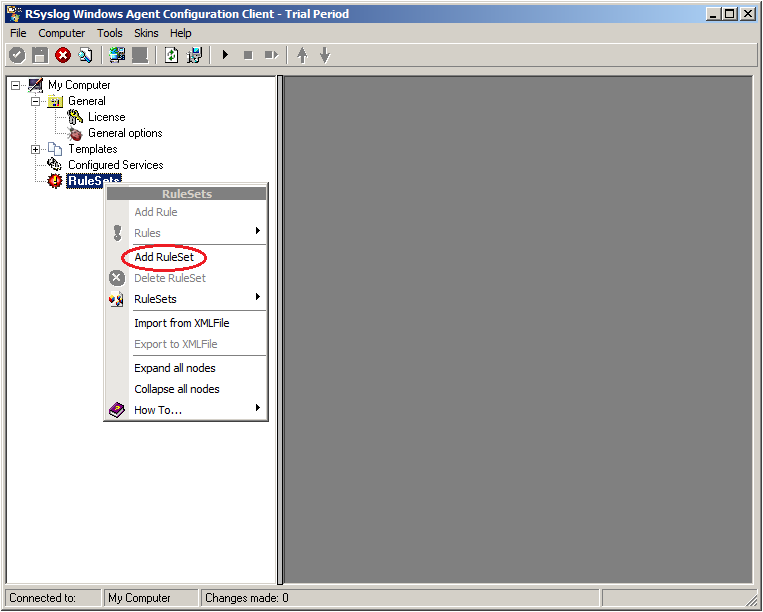
2. Then, a wizard starts. Change the name of the ruleset to whatever name you like. We will use “Forward syslog” in this example. The screen looks as follow:
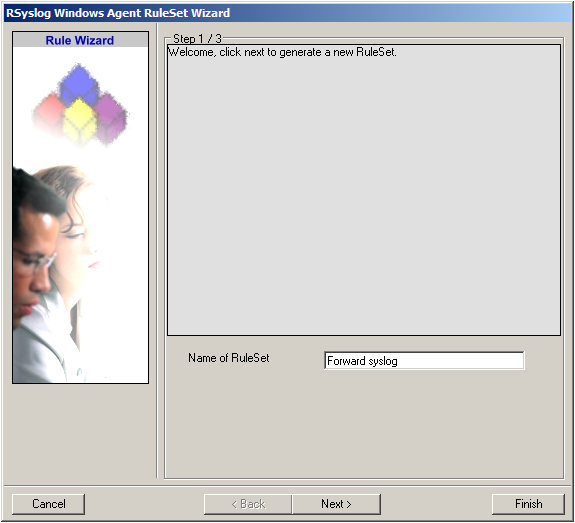
Click “Next” to go on with the next step.
3. Select only Forward via Syslog. Do not select any other options for this sample. Also, leave the “Create a Rule for each of the following actions” setting selected. Click “Next”. You will see a confirmation page. Click “Finish” to create the rule set.

4. As you can see, the new Rule Set “Forward syslog” is present. Please expand it in the tree view until the action level of the “Forward syslog” Rule and select the “Forward syslog” action to configure.
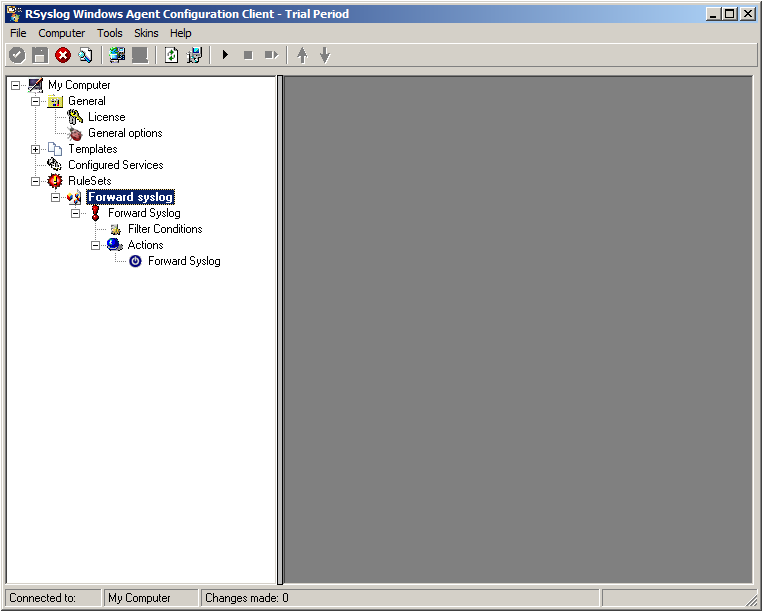
5. Configure the “Forward via Syslog” Action
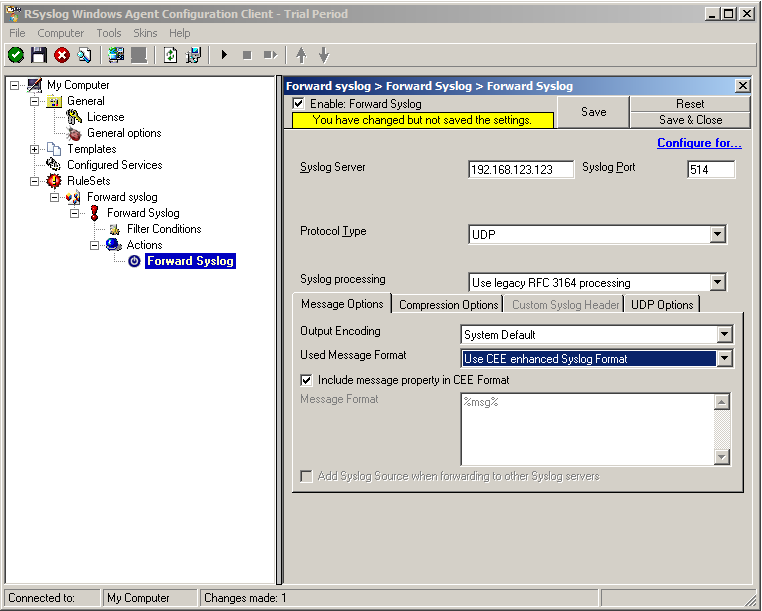
Insert the IP of your syslog server into the field “Syslog Server”. You can change the port if needed as well. We will keep it on the default port 514. You could also change to protocol type to TCP for example. Attention RSyslog Windows Agent and your syslog server must use the same port and the same protocol.
But you need to change the “Used Message Format”. Click on the dropdown menu to see the options and choose “Use CEE enhanced Syslog Format”.
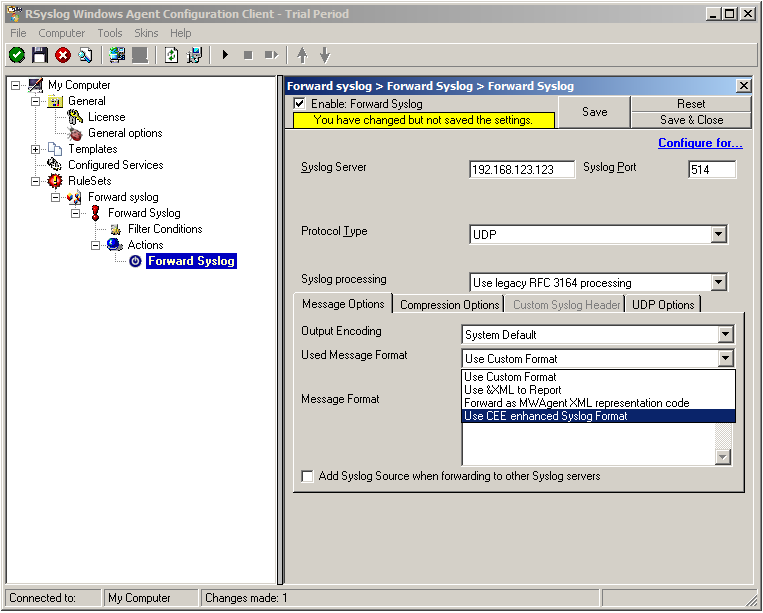
The configuration for syslog forwarding should now look like this:
6. Finally, make sure you press the “Save” button – otherwise your changes will not be applied.
Step 2: Setting up the EventLog Monitor V2.
Note: This guide explains how to set up the EventLog Monitor V2 Service for Windows Vista/z/2008. These steps are not applicable if you are using Windows XP/2000/2003. In that case, please use the regular EventLog Monitor.
1. First, right click on “Services”, then select “Add Service” and then “Event Log Monitor V2”:
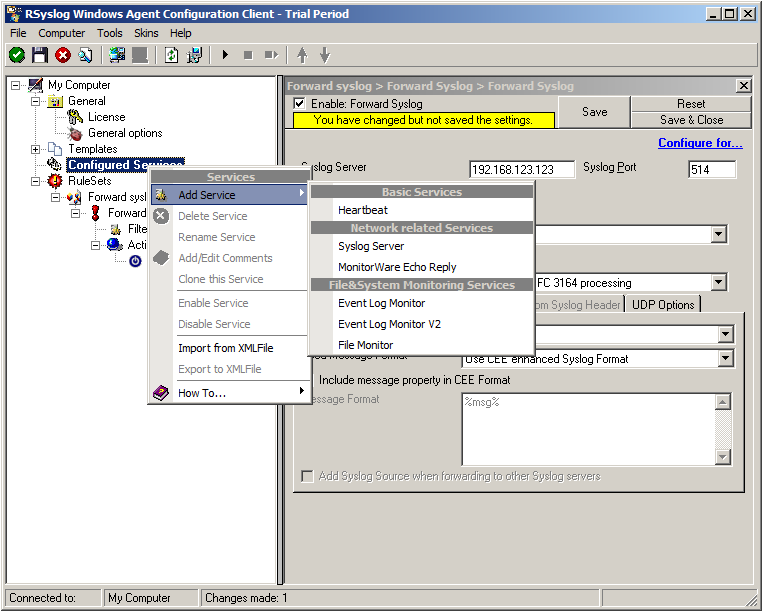
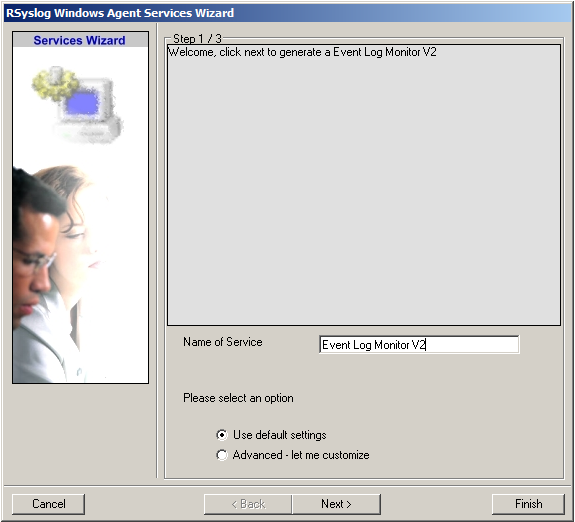
Again, you can use either the default name or any one you like. We will use the default name in this example. Leave the “Use default settings” selected and press “Finish”, as we are not changing any other settings right now.
2. Now, you will see the newly created service beneath the “Services” as part of the tree view. To check its parameters, select it:
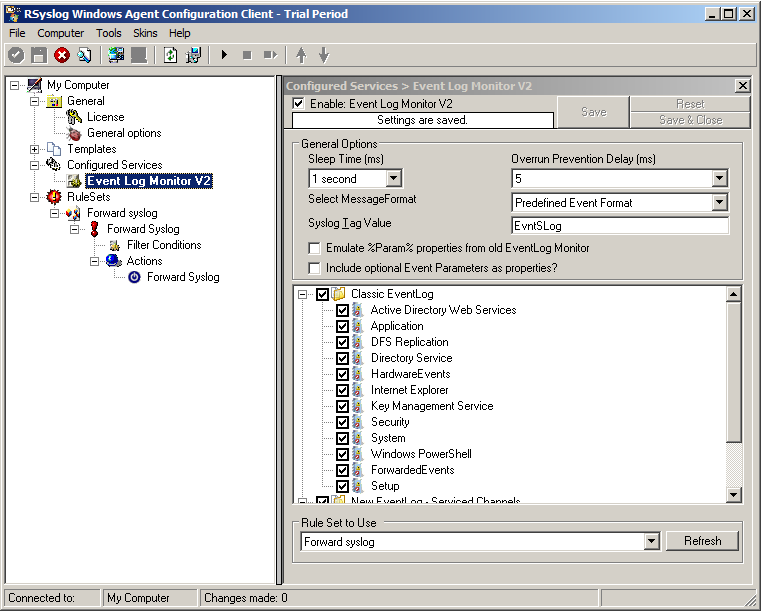
As you can see, the service automatically checks for all present EventLogs. You can now select or disable certain logs or change some of their properties.
Note: The ruleset “Forward Syslog” has been automatically assigned as the ruleset to use. By default, the wizard will always assign the first rule set visible in the tree view to new services.
Step 3: Starting the Service.
5. The last step is to save the changes and start the service. This procedure completes the configuration of the syslog server.
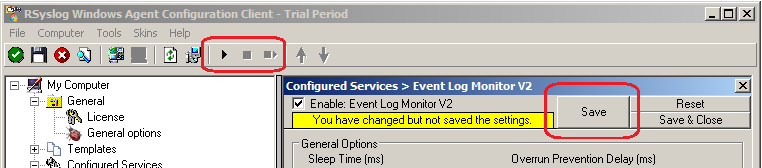
The Service cannot dynamically read changed configurations. As such, it needs to be restarted after such changes. In our sample, the service was not yet started, so we simply need to start it. If it already runs, you need to restart it.
We are now finished. You should now receive the Eventlog messages on your syslog server in CEE enhanced format.
Using TLS for receiving log messages
In this guide, we want to describe, how to use the RSyslog Windows Agent with TLS encrypted syslog. This specific part will describe the setup steps for receiving syslog from a Linux rsyslog installation. First, as a preliminary, you should read the guide from the rsyslog documentation for “Encrypting Syslog Traffic with TLS (SSL)”. It describes in details the overall setup, how certificates are generated and how the clients and server need to be set. It is strongly suggested to be read as a whole.
Since we will receive syslog messages via TLS and we can only forward messages via syslog (with TLS or without) the whole setup will basically resemble what we described in our guide for a syslog relay. Therefore, we will only show how to setup the syslog service.
Step 1: Machine certificates
The easiest way to create the machine certificates is as described in the Linux guide above. So please create a machine certificate as described here: Generating Machine Certificates
Please provide your Windows machine with those certificates. Make sure, that they are safe and cannot get into someones’ hands.
Step 2: Setting up the ruleset and action.
Usually we start by creating the ruleset, rule and action. The reason lies in the configuration structure. So we will first create the mentioned items. In the end, we will have a basic rule with no particular filter and a forward via syslog action. That means, that all messages will be forwarded to a central host.
Step 3: Create a Syslog Server Service
Now we need to create a syslog server service.
To create it, right click on “Services”, then select “Add Service” and the “Syslog Server”:
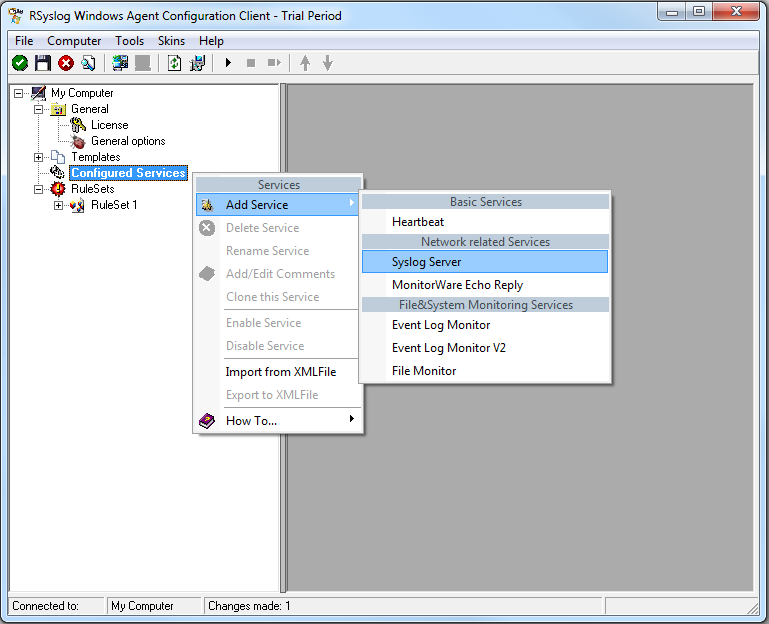
Once you have done so, a new wizard starts:
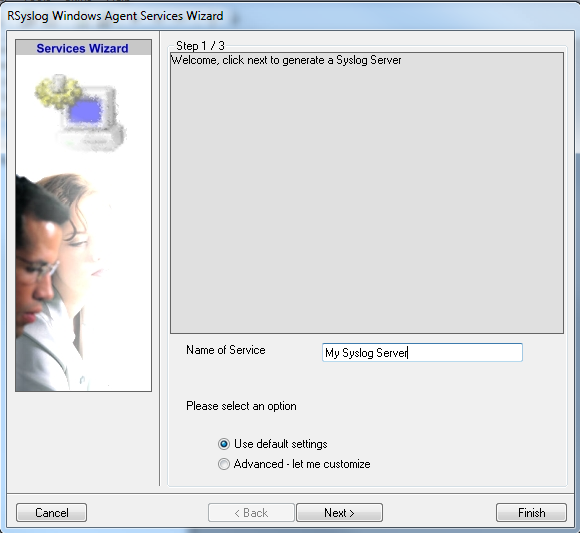
Again, you can use either the default name or any one you like. We will use “My Syslog Server” in this example. Leave the “Use default settings” selected and press “Next”:
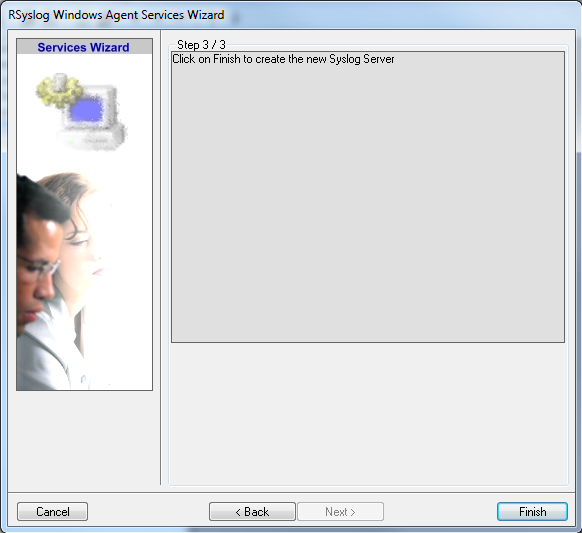
As we have used the default, the wizard will immediately proceed with step 3, the confirmation page. Press “Finish” to create the service. The wizard completes and returns to the configuration client. There, you will see the newly created service beneath the “Services” part of the tree view:
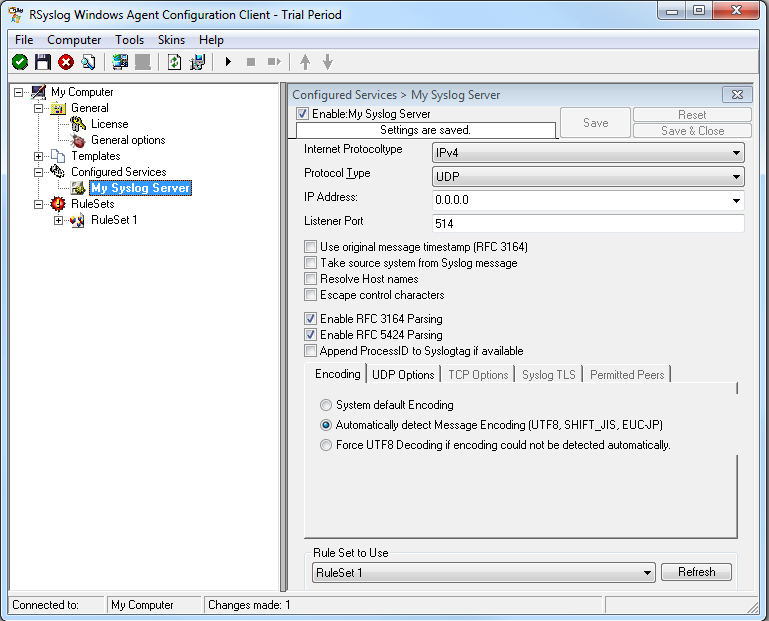
As you can see, the service has been created with the default parameters. As such, it operates as a RFC compliant standard Syslog server. But, we still need to make some changes so we can receive TLS syslog.
Step 4: Changing to TLS
First we need to change the protocol type. Change it to TCP. TLS syslog is not available with UDP. If you want, you can change the port to what your clients use for sending.
Now in the lower part of the configuration window click on the tab Syslog TLS. This is where the important TLS settings will be made.
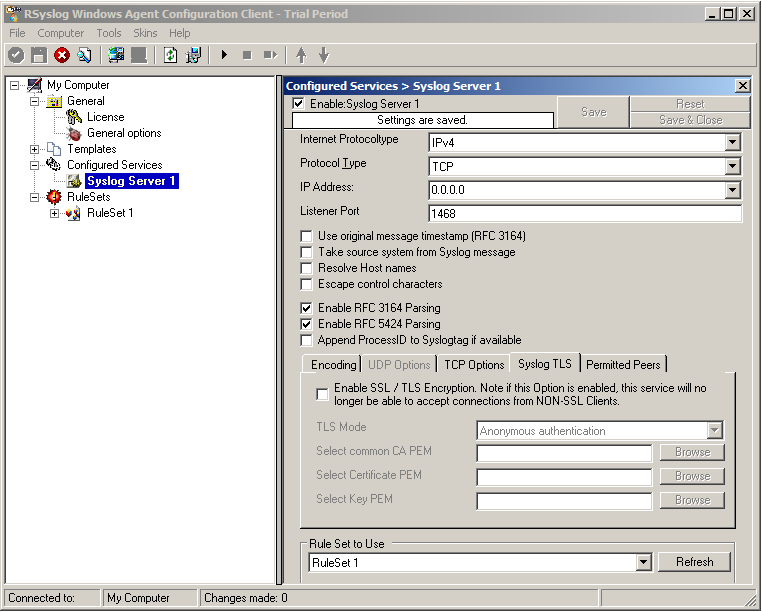
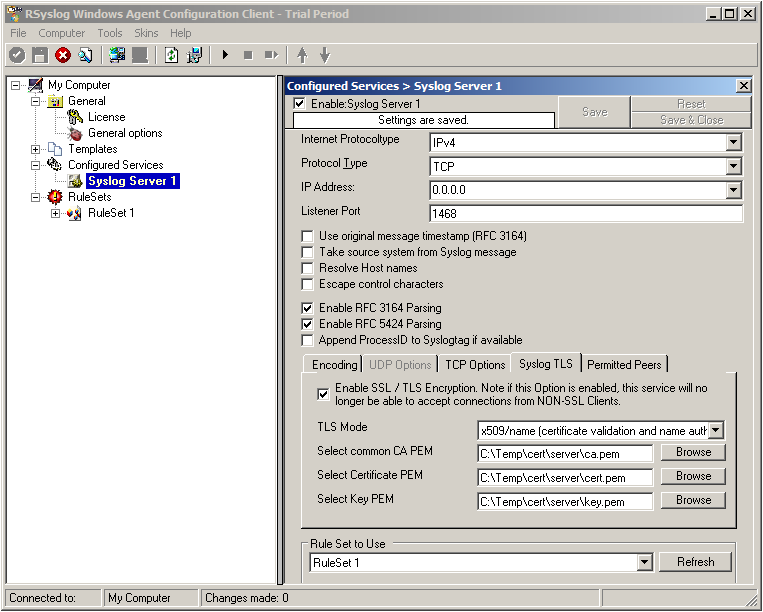
Now check the box for “Enable SSL / TLS Encryption”. The other options become available now. We suggest using x509/name mode, which is obviously the most secure of the available modes.
Below, select your PEMs that you created in Step 1 and submitted to the machine. It should look something like this, though your paths and certificate names might be different.
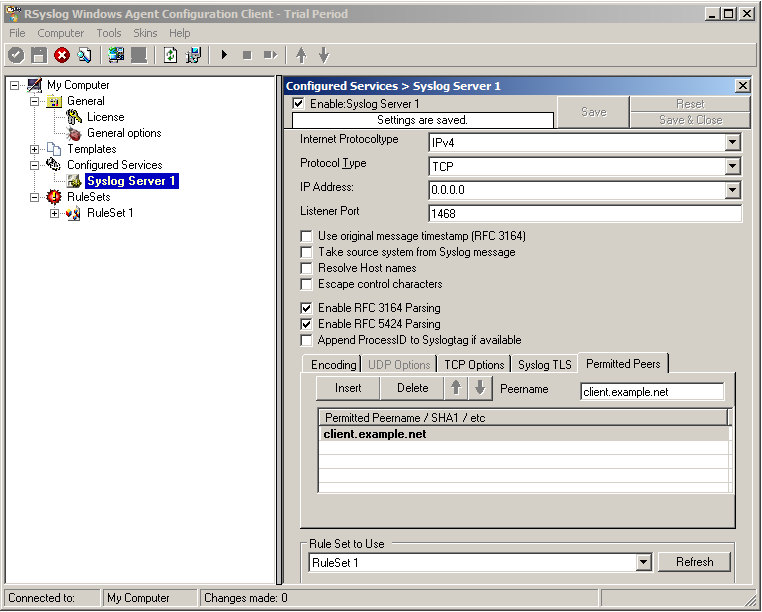
Now we can go on to the Permitted Peers tab. Here we define the systems that are allowed to send their syslog messages to our relay host. You could also use wildcards for the peers, like *.example.net. Just look below:
That is basically what we need to set up when receiving syslog via TLS.
Final Thoughts
That is just the setup need for receiving syslog via TLS in RSyslog Windows Agent. This is, as we already mentioned before, for a setup where the RSyslog Windows Agent is used as a relay. You could also apply TLS syslog to the outgoing syslog traffic, but that is not what we wanted to show here.
rsyslog 6.3.7 (v6-devel) released
With this release, all builtin actions support the new v6 config format. Also, the release contains much enhanced statistics counters and various bug fixes. Recommended for all users of the v6-devel branch.
ChangeLog:
http://www.rsyslog.com/changelog-for-6-3-7-v6-devel/
Download:
http://www.rsyslog.com/rsyslog-6-3-7-v6-devel/
As always, feedback is appreciated.
Best regards,
Florian Riedl
rsyslog 6.3.7 (v6-devel)
Download file name: rsyslog 6.3.7 (devel)
rsyslog 6.3.7 (devel)
md5sum: 38c8cef3c97eaa4cfb43a6918e778b5e
Author: Rainer Gerhards (rgerhards@adiscon.com)
Version: 6.3.7 File size: 2.45 MB
Changelog for 6.3.7 (v6-devel)
Version 6.3.7 [DEVEL] 2012-02-02
- imported refactored v5.9.6 imklog linux driver, now combined with BSD driver
- removed imtemplate/omtemplate template modules, as this was waste of time
The actual input/output modules are better copy templates. Instead, the now-removed modules cost time for maintenance AND often caused confusion on what their role was. - added new stats objects
- improved support for new v6 config system. The build-in output modules now all support the new config language
- bugfix: facility local<x> was not correctly interpreted in legacy filters
Was only accepted if it was the first PRI in a multi-filter PRI. Thanks to forum user Mark for bringing this to our attention. - bugfix: potential abort after reading invalid X.509 certificate
closes: http://bugzilla.adiscon.com/show_bug.cgi?id=290
Thanks to Tomas Heinrich for the patch - bufgix: legacy parsing of some filters did not work correctly
- bugfix: rsyslog aborted during startup if there is an error in loading an action and legacy configuration mode is used
- bugfix: bsd klog driver did no longer compile
- relicensed larger parts of the code under Apache (ASL) 2.0
Load balancing for rsyslog
To use rsyslog effectively in a cluster, one could use the iptables CLUSTERIP feature on linux to setup one IP address that gets shared across the cluster of systems. A heartbeat (with the pacemaker cluster management layer) can keep track of the cluster and make sure that there is always a box handling the traffic.
It does use a multicast MAC address to send the traffic to multiple machines. The kernel does a hash on (one or more of) the source IP, source port, destination IP and destination port. It then divides this hash into buckets (machine 1 of 10) and if it falls into the bucket for this machine, it then sends the packet on to the application. Otherwise the kernel drops the packet.
This has the advantage of not needing any other systems. It can be done entirely on the receiving cluster.
A different approach would be to setup a LVS (Linux Virtual Server) load balancer (or any other commercial load balancer) to divide the TCP traffic.
Note: In any of these configurations, one will want to consider the tcprebindinterval config directive of rsyslog on the sending machines, so they will periodically close and re-open their connection (so that the source port changes). Otherwise one can end up with the traffic being unbalanced between the systems without any way to re-balance the load.
Using RSyslog Windows Agent to forward log files
in this article we describe how to use the RSyslog Windows Agent to forward log messages that are stored in plain text files. The article itself will be made of two larger steps. Both steps contain some substeps which will be shown in detail in one of the smaller articles. We assume, that no basic configuration is currently available.
This time, we want to use textfiles as log sources. Many programs for Windows do not use the EventLog system. They use simple and plain text files to store their log messages. Though, the information that is logged there could be as important as EventLogs.
Basically, the configuration of RSyslog Windows Agent consists of 3 parts.
1. A so-called service which generates the log data to be processed by, for example, a file monitor.
2. Rules with Filters. Filters give you the power to decide which log messages are important enough to be kept or not.
3. The action that has to be taken. In our case, forwarding the syslog messages.
Step 1: Setting up the ruleset and action.
Usually we start by creating the ruleset, rule and action. The reason lies in the configuration structure. So we will first create the mentioned items. In the end, we will have a basic rule with no particular filter and a forward via syslog action. That means, that all messages will be forwarded to a central host.
Step 2: Setting up the service.
Now we will set up the service. We need to create a File Monitor Service. The File Monitor Service is able to monitor a file or a directory with files. It will check the specified file(s) periodically for new lines (which would be new log messages) and use them for further processing.
That’s it, you are already finished. Easy wasn’t it? Now you should be able to poll log files and forward the log messages to your central syslog server.
rsyslog 6.2.0 (v6-stable) released
This is the initial stable release of rsyslog v6. It is basically the last beta version plus some more fixes. This version provides functional and performance enhancements, for example the Hadoop (HDFS) support has been considerably speeded up by supporting batched insert mode. Also, TCP transmission overhead for TLS has been dramatically improved. TCP now also supports input worker thread pools. Most importantly, rsyslog now supports log normalization via liblognorm rule bases. This permits very high performance normalization of semantically equal messages from different devices (and thus in different syntaxes).
Note that config scoping, available in the beta versions, is NOT supported by v6-stable. This was decided because it would have been functionality equivalent to the new config language upcoming in v6.3 (already available as part of the devel version). As scoping was not available in any earlier versions, introducing it in v6.2 would have added, in the long term, just another method of doing some identicaly thing via the ugly old config language. This would have lead to user confusion and more complex than necessary code. If you are interested in the cleaner config language, we strongly encourage you to have a look at rsyslog 6.3.
With the arrival of the stable v6 version, version 4 will be retired and is no longer officially supported (but support is provided under maintenance contracts, of course).
ChangeLog:
http://www.rsyslog.com/changelog-for-6-2-0-v6-stable/
Download:
http://www.rsyslog.com/rsyslog-6-2-0-v6-stable/
As always, feedback is appreciated.
Best regards,
Florian Riedl
Changelog for 6.2.0 (v6-stable)
ChangeLog (from 6.1.12 to 6.2.0):
- bugfix (kind of): removed numerical part from pri-text see v6 compatibility document for reasons
- bugfix: race condition when extracting program name, APPNAME, structured data and PROCID (RFC5424 fields) could lead to invalid characters e.g. in dynamic file names or during forwarding (general malfunction of these fields in templates, mostly under heavy load)
- bugfix: imuxsock did no longer ignore message-provided timestamp, if so configured (the *default*). Lead to no longer sub-second timestamps.
closes: http://bugzilla.adiscon.com/show_bug.cgi?id=281 - bugfix: omfile returns fatal error code for things that go really wrong previously, RS_RET_RESUME was returned, which lead to a loop inside the rule engine as omfile could not really recover.
- bugfix: rsyslogd -v always said 64 atomics were not present
thanks to mono_matsuko for the patch - bugfix: potential abort after reading invalid X.509 certificate closes:
http://bugzilla.adiscon.com/show_bug.cgi?id=290
Thanks to Tomas Heinrich for the patch - $Begin, $End, $StrictScoping directives have been removed as v6.4 will provide the same functionality in a far better way. So we do not want to clutter the code.