
Using MongoDB with rsyslog and LogAnalyzer
In this scenario we want to receive cee-formatted messages from a different system with rsyslog, store the messages with MongoDB and then display the stored messages with Adiscon LogAnalyzer. This is a very common use-case. Please read through the complete guide before starting.
We will split this guide in 3 main parts. These parts can consist of several steps.
- Setting up rsyslog
- Setting up MongoDB
- Setting up LogAnalyzer
This guide has been created with rsyslog 7.3.6 on ubuntu 12.04 LTS and Adiscon LogAnalyzer 3.6.3. All additional packages, services or applications where the latest version at that time.
Before you begin
Please note, there are many ways to distribute rsyslog. But, make sure that the platform you build rsyslog on is the same platform as where it should be used. You cannot build rsyslog on CentOS and use it on Ubuntu. The differences between the platforms are just to big. The same applies to different versions of the same platform. When building on a older platform and using it on a newer version, this may work, but with restrictions. Whereas building on a newer version and using it on a older version will probably not work at all. So, if you build rsyslog from Source and want to use it on another machine, make sure the platform is the same.
Step 1 – Setting up rsyslog
We need to setup rsyslog first. Not only do we need the core functionality, but several additional modules. For this case we want to receive the syslog messages via TCP, thus we need imtcp. For processing we need first mmjsonparse and ommongodb. Your configure should look like this.
./configure --prefix=/usr --enable-imtcp --enable-mmjsonparse --enable-ommongodb
The module mmjsonparse will be needed to verify and parse the @cee messages. Ommongodb will be used to write into the MongoDB. After the configure and installation, we can create our config. The config for our case looks like this:
module(load="imtcp")
module(load="mmjsonparse")
module(load="ommongodb")
input(type="imtcp" port="13514" Ruleset="mongodb")
template(name="mongodball" type="subtree" subtree="$!")
ruleset(name="mongodb") {
        action(type="mmjsonparse")
        if $parsesuccess == "OK" then {
                set $!time = $timestamp;
                set $!sys = $hostname;
                set $!procid = $syslogtag;
                set $!syslog_fac = $syslogfacility;
                set $!syslog_sever = $syslogpriority;
                set $!pid = $procid;
                action(type="ommongodb" server="127.0.0.1" db="logs" collection="syslog" template="mongodball")
                }
        }
As always, we first load the modules. The next part is the input. We need to receive tcp via imtcp. Please note, that we directly bind the input to a ruleset. The third part of the configuration is a template. We need it later when writing to MongoDB. Since we will automatically transform our @cee-message into json, we can use a subtree template. The template itself is basically the root of the subtree.
The last and most important part is the ruleset. Here all of our work is done. First, all messages are run through the mmjsonparse module. This will not only verify if we received a valid json message, but also transforms all the values into a json subtree. If the parsing was successful, we need to set several variables for the subtree. Information that is delivered in the syslog header will not be parsed into the subtree by mmjsonparse automatically. Thus we have to set subtree variables with the values of some default properties like timestamp, hostname and so on. After that we have basically all information from the complete syslog message in the subtree format. Finally a last action is needed. We need to write our log messages to MongoDB. In this example, MongoDB is installed on the same machine. We want to use the db “logs” and as collection we want to use “syslog”. And we use our subtree template to define the format that is written to MongoDB. Thus, all our parsed variables are stored separately. If we do not use this template, the @cee message gets written as it is into the msg field in MongoDB. But this is not what we want. We want all variables to be available separately.
That is basically it for rsyslog. You can now save the configuration and restart rsyslog. Though it won’t be able to be useful yet. We still need to install MongoDB.
Step 2 – Install MongoDB
Making a basic install for MongoDB is rather easy. Simply install the following packages:
mongodb
mongodb-server
php-pecl-mongo
libmongo-client
libglib2.0-dev
Please note, that package names may vary for different distributions.
After we have installed the packages, the MongoDB Server is already ready. By default, it is not secured by a user or password. Refer to the MongoDB manual for more information. Databases and collections (equivalent to tables) are created by rsyslog and do not need to be defined with the mongo shell. We will stick with the default setup to keep it simple.
Step 3 – Installing Adiscon LogAnalyzer
To run Adiscon LogAnalyzer, you need a webserver with PHP. The easiest way is to use apache2 and php5. To be able to access the MongoDB, we need to install an additional package. Run the following command
sudo pecl install mongo
You might need to install the package php-pear first, if it hasn’t been installed already with PHP.
After that, we need to put the following line into the file php.ini.
extension=mongo.so
Remember to restart your webserver after making changes to the php.ini. Without a lot of configuration, this should aready work.
We can now install Adiscon LogAnalyzer. Download the latest version from the Adiscon LogAnalyzer Download page and install it as it is described in the documentation.
The only difference we need to make is when setting up the log source in step 4.5. You need to set at least the following as shown in the screenshot:
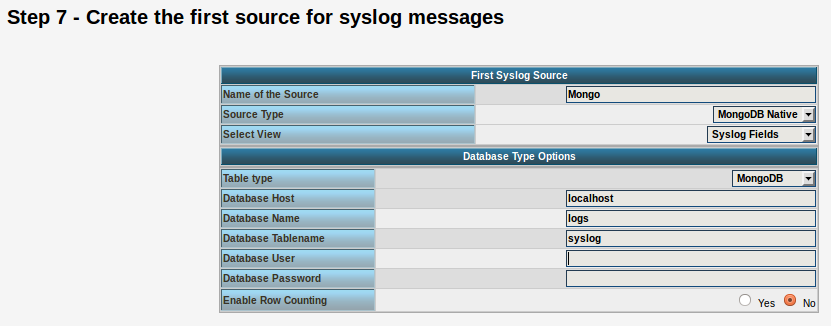
Source Type: MongoDB Native
Table Type: MongoDB
Database Name: logs
Database Tablename: syslog
Database user: <clear this field>
The User and Password is of course needed, if you set it in your MongoDB setup.
After you have finished the installation of Adiscon LogAnalyzer, you should now be seeing the LogAnalyzer overview and the log messages in a table view (if you have already stored them in MongoDB). Now if you click on a specific message, you get to see the detail view of the log message.
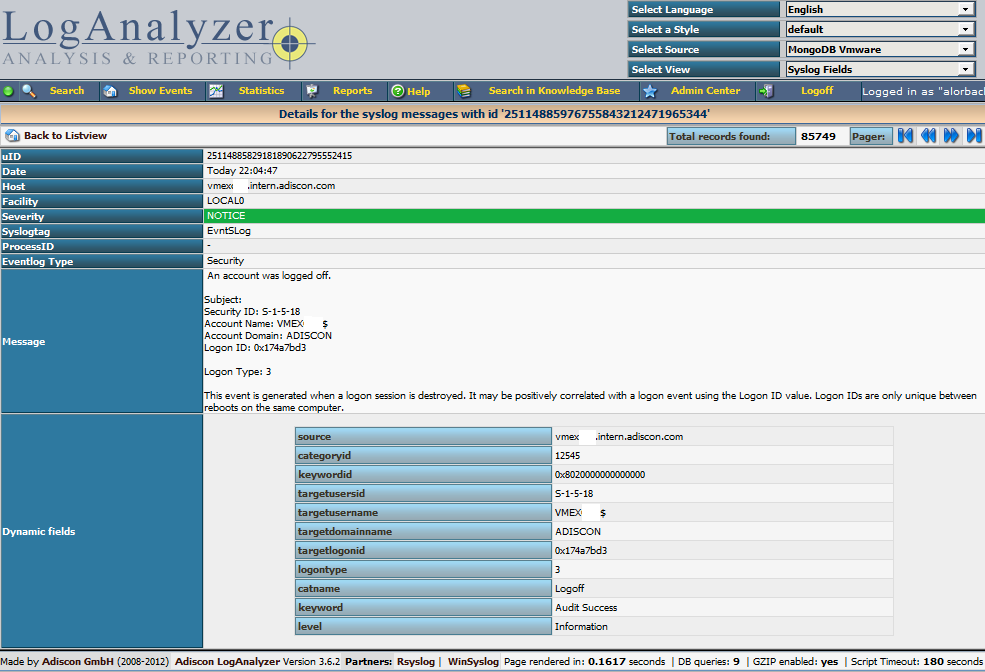
Click on the picture for a bigger size
As you can see, you get a list of dynamic fields. These fields where already sent in @cee format from the original source and were parsed by rsyslog and mmjsonparse and finally they were automatically filled into the MongoDB.
With this setup, you are independent of a fixed database structure. Fields are inserted dynamically into the database as they are available and they are dynamically display by Adiscon LogAnalyzer as well.
Rsyslog Windows Agent 2.0 Released
Adiscon is proud to announce the 2.0 release of RSyslog Windows Agent.
This new major release adds full Continue reading “Rsyslog Windows Agent 2.0 Released”
How to use the Ubuntu repository
The Adiscon Ubuntu Repository has been setup to provide support for the latest rsyslog versions on Ubuntu 12 including support for necessary third party packages. Please note that the Ubuntu Repository is open for testing at the moment, and contains only the latest version for v7-devel. The new packages are based in the original and latest Ubuntu 12 rsyslog packages, so in most cases an simple sudo apt-get update && sudo apt-get upgrade will be enough to update rsyslog. Please note that these packages are currently experimental. Use at your own risk.
To use our repository, follow these steps:
Install our PGP Key into your apt system
sudo apt-key adv --recv-keys --keyserver keyserver.ubuntu.com AEF0CF8E
Edit your /etc/apt/sources.list and add these lines to the end
# Adiscon repository
deb http://ubuntu.adiscon.com/v7-devel precise/
deb-src http://ubuntu.adiscon.com/v7-devel precise/
Once done perform these commands to update your apt cache and install the latest rsyslog version
sudo apt-get update && sudo apt-get upgrade
If you receive a message like this while upgrading follow these steps below:
The following packages have been kept back:
rsyslog
0 upgraded, 0 newly installed, 0 to remove and 1 not upgraded.sudo apt-get install rsyslog
We highly appriciate any feedback or bug reports.
The newest information will be available on the Ubuntu Repository project page.
Normalizing Cisco ASA messages
This time, we want to parse log messages received from a Cisco ASA for specific parts. The log messages will be parsed by liblognorm and then they will be written into a specific file resembling the sent code.
This guide has been tested with v7.3.4 of rsyslog.
Things to think about
We basically need a receiver, the normalizer module mmnormalize, some templates and several actions. To keep the logs seperated from other log messages, we also will need a filter. But that is just valid for the rsyslog configuration.
We also need liblognorm installed and a rulebase to work with. The rulebase is needed for liblognorm to know what to do with the messages, so it knows, which part should be fed into a custom property and which to ignore.
Config Statements
We now have basically two parts to configure. The first part should be the rulebase which holds format representations of the expected log messages. For this example we will work with the following log line:
2012-11-23T10:47:42+01:00 0.0.0.0 : %ASA-3-313001: Denied ICMP type=8, code=0 from 77.2.2.2 on interface outside
The rulebase entry for this log line looks like this:
rule=: %date:word% %host:ipv4% : \x25ASA-%ddd:char-to:-%-%eee:number%: Denied ICMP type=%number2:number%, code=%number3:number% from %origin:ipv4% on interface outside
And here is the rsyslog configuration:
module (load="immark")
module (load="imuxsock")
module (load="imklog")
module (load="mmnormalize")
module (load="imudp")
input(type="imudp" port="514")
template(name="filename" type="string" string="/var/log/%$!ddd%-%$!eee%")
if $msg contains '%ASA' then{
 action(type="mmnormalize" userawmsg="off" rulebase="/path/to/rulebase.rb")
 action(type="omfile" DynaFile="filename")
}
How it works
The rulebase holds currently one rule. The rule is a representation of the above log message. For this case, we are only interested in the ASA code. The code identifies a specific message, thus, the message itself is not interesting. Though, we have to reflect complete message and put temporary variables, where the same message of a kind still has different values. These would be the timestamp, source, type and code the the IP which triggered the message. The problem is here, that we really only need two parts to be filled into a property, but other parts can be variable. The message format can be the same, but i.e. the IP from the source can vary. If you fill in a concrete value into the rule where such parts are, the message will only be parsed correctly if the message originates from the exact same IP.
The configuration itself isn’t very complicated. It loads several standard modules, which are mainly used to ensure local logging, as well as the UDP input module and the precious mmnormalize. The mmnormalize module will be later used as a output module. It handles the loading of the rulebase, as well as implements the normalization features of liblognorm.
After loading the modules, we have our single UDP input configured, which is necessary to receive the log messages from the Cisco ASA. Nothing fancy here, but a standard syslog receiver for UDP.
The next step is to create a template. The template is not for a message output format, but a file name format. It will help writing the messages into log files that reflect the ASA number in the filename.
Finally we will filter for “%ASA” in the message. That will ensure, that only ASA messages are processed by the following actions. The first action runs the message through mmnormalize, while using our rulebase. The messages will be parsed by liblognorm. If the messages do fit the rules in the rulebase, the parts we need will be put into properties. These properties come into play in the second action where we simply write the messages via Dynafile to disk. The template and our new properties will be used to define the filename.
Important
This configuration works or fails with the rulebase. All messages, that should be run through the normalizer must fit to a rule. If you are in doubt, that the rules are correct, follow the linked guide. It will show you how to create a output format that shows if a message has been parsed correctly or if and where the parsing broke.
rsyslog 7.2.3 (v7-stable) released
This is mainly a re-release of 7.2.2 with an important regression fix. Version 7.2.2 caused premature end of config file (and most often rsyslog termination) if an $IncludeConfig directive was done on a wildcard that matched no files. This is a default situation on my distro plain installs. Users are strongly urged to upgrade to 7.2.3. Note that we did not build RPMs for 7.2.2 as we noticed the problem early enough.
Version 7.2.3 is also available as RPM via the Adiscon repository (see http://www.rsyslog.com/rhelcentos-rpms/ ).
ChangeLog:
http://www.rsyslog.com/changelog-for-7-2-3-v7-stable/
Download:
http://www.rsyslog.com/rsyslog-7-2-3-v7-stable/
As always, feedback is appreciated.
Best regards,
Tim Eifler
How to use rsyslog v7 on debian 5?
As development continues, there sometimes arises the need for additional packages to be installed in order to run the newest version. It is the same case for rsyslog. Since version 6.6.0 there is a requirement for json-c to be installed. For debian 6, there are packages available via package managers for easy installation. So there is no problem. For debian 5, the package repositories are unavailable and there is no .deb for json-c delivered on the disc. But without json-c, there is no chance to even install a current rsyslog on debian 5.
Gladly, there are other means to install json-c. There are tarballs available at
https://github.com/json-c/json-c/downloads
Unpack the tarball and install it with:
./configure --prefix=/usr
make
make install
Unfortunately, make install seems not to copy all the necessary files to correct destination. You still have to manually copy a single file. Do the following:
cp some/directory/json-c-0.10/json_object_iterator.h /usr/include/json/
Now you are all set up to install rsyslog 6.6.0 or 7.2.0 on a debian 5 system. If other packages are still missing (like bison), they are available as package on the disc.
How to use rsyslog and MongoDB
rsyslog is since version 6.1.3 capable of using a output module called “ommongodb” to write log messages to mongodb. To achieve this, several packages are needed:
mongodb
mongodb-server
php-pecl-mongo
libmongo-client
libglib2.0-dev
These and of course rsyslog are needed. The packages are easily installed via a package manager. And the installation steps for rsyslog are the usual ones. Except for the “Configure”. Please make sure to include “–enable-ommongodb“. And the other features you plan to use of course.
./configure --libdir=/usr/lib --sbindir=/usr/sbin --enable-ommongodb
make
make install
After this, you need to make some adjustments to the rsyslog.conf. You need to load the module of course and configure an action:
module (load="ommongodb")
*.* action(type="ommongodb" server="127.0.0.1")
In this case we send everything to the local MongoDB server. With the default settings, this should work directly. No username or password is needed if it isn’t configured in MongoDB. And the “db” and “collection” will automatically be created. The default database that rsyslog will use is “syslog” and the default name for the collection is “log“. These can be changed by various parameters.
To review what is written to the database, simply open a command line and enter “mongo“. This is to open the MongoDB Shell. You now need to change the database that is used with
use syslog
That way all further commands will be used on the database that rsyslog uses. Next we let the shell show us the entries:
db.log.find()
Please make sure to use the exact command. Of course there are a lot of other commands that you may find useful. Or information on how to secure the database. Please refer to the MongoDB documentation for that.
Changelog for 6.3.10 (v6-beta)
Version 6.3.10 [BETA] 2012-06-04
- bugfix: delayble source could block action queue, even if there was disk queue associated with it. The root cause of this problem was that it makes no sense to delay messages once they arrive in the action queue – the “input” that is being held in that case is the main queue worker, what makes no sense.
Thanks to Marcin for alerting us on this problem and providing instructions to reproduce it. - bugfix: invalid free in imptcp could lead to abort during startup
- bugfix: if debug message could end up in log file when forking if rsyslog was set to auto-background (thus fork, the default) and debug mode to stdout was enabled, debug messages ended up in the first log file opened. Currently, stdout logging is completely disabled in forking mode (but writing to the debug log file is still possible). This is a change in behaviour, which is under review. If it causes problems to you, please let us know.
Thanks to Tomas Heinrich for the patch. - bugfix: –enable-smcustbindcdr configure directive did not work
closes: http://bugzilla.adiscon.com/show_bug.cgi?id=330
Thanks to Ultrabug for the patch. - bugfix: made rsyslog compile when libestr ist not installed in /usr
Thanks to Miloslav Trmač for providing patches and suggestions
Edition Comparison
Edition Comparison
RSyslog Windows Agent comes in different editions so that you can tailor it to your exact needs. This page here helps you decide which edition is best for your needs. Please note that the licensing is per machine this means you need a license for every device where you install the RSyslog Windows Agent.
Please see the feature sheet below to learn on the different product
capabilities.
| Feature | Basic ($/€ 55) | Professional ($/€ 79) | Enterprise ($/€ 109) |
| Monitoring Services |
| Syslog Server |  | ||
| RFC 3195 compliant Syslog Server | | ||
| Event Log Monitor | | | |
| Advanced Eventlog Clearing Options | | | |
| Text File Monitor | | | |
| Remote Text File Monitor licenses | 0 | 10 | unlimited |
| Heartbeat | | | |
| MonitorWare Echo Reply | | | |
| Actions |
| Syslog Forwarder | | | |
| RFC 3195 compliant Syslog Forwarder | | | |
| Send RELP | | | |
| Property Modification | | | |
| Status Modification | | | |
| Call Another RuleSet | | | |
| Discard | | | |
| Filtering |
| Flexible Rule Engine | | | |
| Multiple Conditions | | | |
| Unlimited Actions per Event | | | |
| Unlimited Rules per Rule Set | | | |
| Unlimited Rule Sets | | | |
| Add-On Support |
| 64 bit ready | | | |
| Available Support & Service Packages |
| Free Online Support Forum | | | |
| Free email support | | | |
| SupportIncidents | | | |
| Custom Development | | | |
| UpgradeInsurance (inludes email priority support) | | | |
Questions remaining? No problem: just contact us via the Customer Service System!
Using TLS for receiving log messages
In this guide, we want to describe, how to use the RSyslog Windows Agent with TLS encrypted syslog. This specific part will describe the setup steps for receiving syslog from a Linux rsyslog installation. First, as a preliminary, you should read the guide from the rsyslog documentation for “Encrypting Syslog Traffic with TLS (SSL)”. It describes in details the overall setup, how certificates are generated and how the clients and server need to be set. It is strongly suggested to be read as a whole.
Since we will receive syslog messages via TLS and we can only forward messages via syslog (with TLS or without) the whole setup will basically resemble what we described in our guide for a syslog relay. Therefore, we will only show how to setup the syslog service.
Step 1: Machine certificates
The easiest way to create the machine certificates is as described in the Linux guide above. So please create a machine certificate as described here: Generating Machine Certificates
Please provide your Windows machine with those certificates. Make sure, that they are safe and cannot get into someones’ hands.
Step 2: Setting up the ruleset and action.
Usually we start by creating the ruleset, rule and action. The reason lies in the configuration structure. So we will first create the mentioned items. In the end, we will have a basic rule with no particular filter and a forward via syslog action. That means, that all messages will be forwarded to a central host.
Step 3: Create a Syslog Server Service
Now we need to create a syslog server service.
To create it, right click on “Services”, then select “Add Service” and the “Syslog Server”:
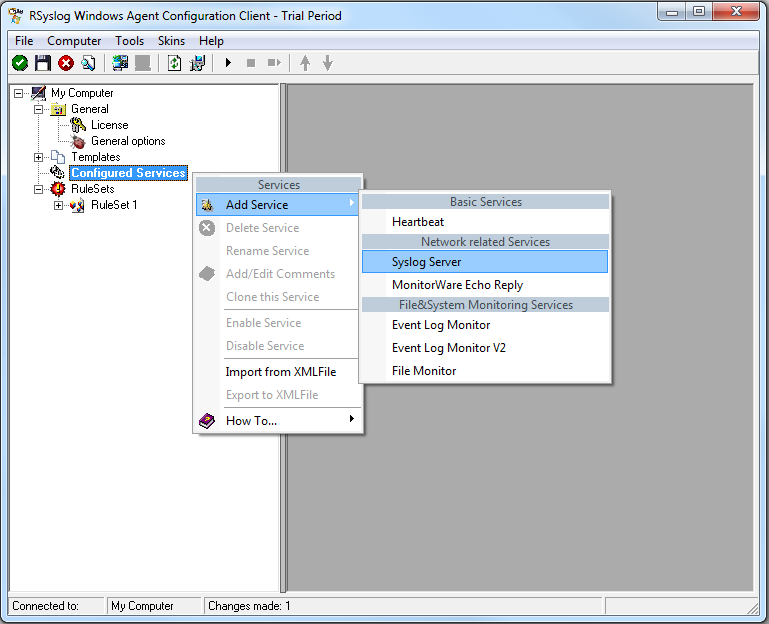
Once you have done so, a new wizard starts:
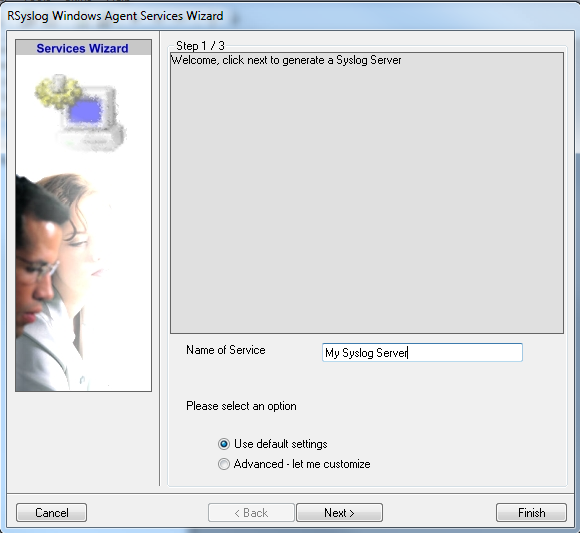
Again, you can use either the default name or any one you like. We will use “My Syslog Server” in this example. Leave the “Use default settings” selected and press “Next”:
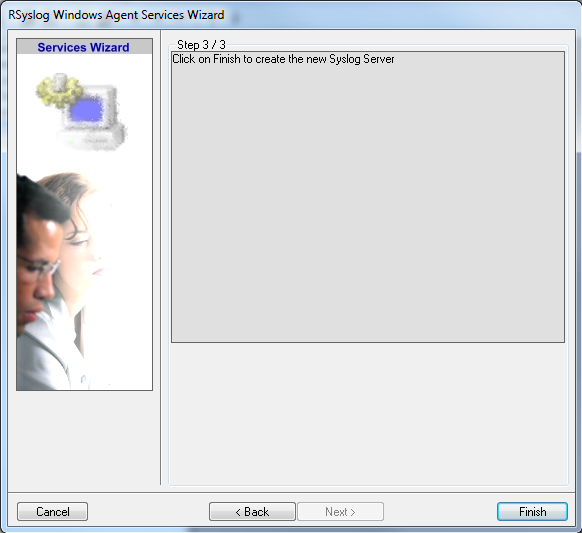
As we have used the default, the wizard will immediately proceed with step 3, the confirmation page. Press “Finish” to create the service. The wizard completes and returns to the configuration client. There, you will see the newly created service beneath the “Services” part of the tree view:
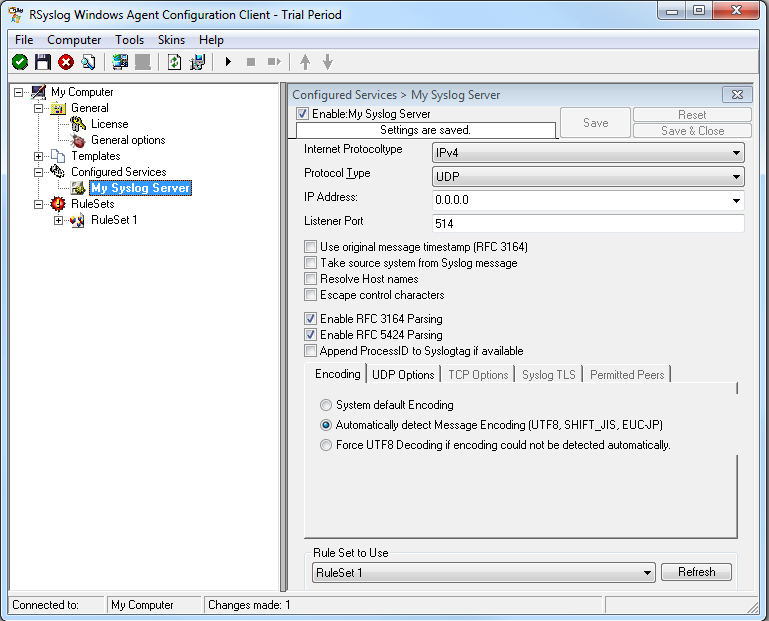
As you can see, the service has been created with the default parameters. As such, it operates as a RFC compliant standard Syslog server. But, we still need to make some changes so we can receive TLS syslog.
Step 4: Changing to TLS
First we need to change the protocol type. Change it to TCP. TLS syslog is not available with UDP. If you want, you can change the port to what your clients use for sending.
Now in the lower part of the configuration window click on the tab Syslog TLS. This is where the important TLS settings will be made.
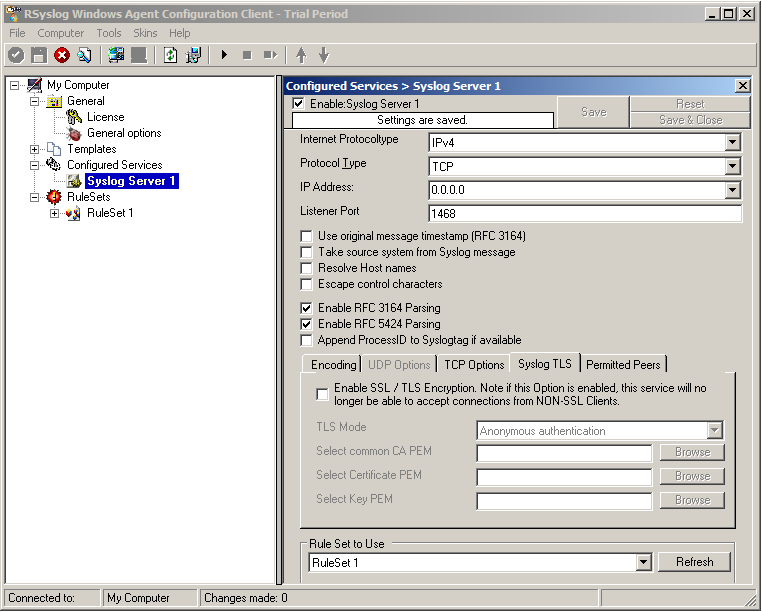
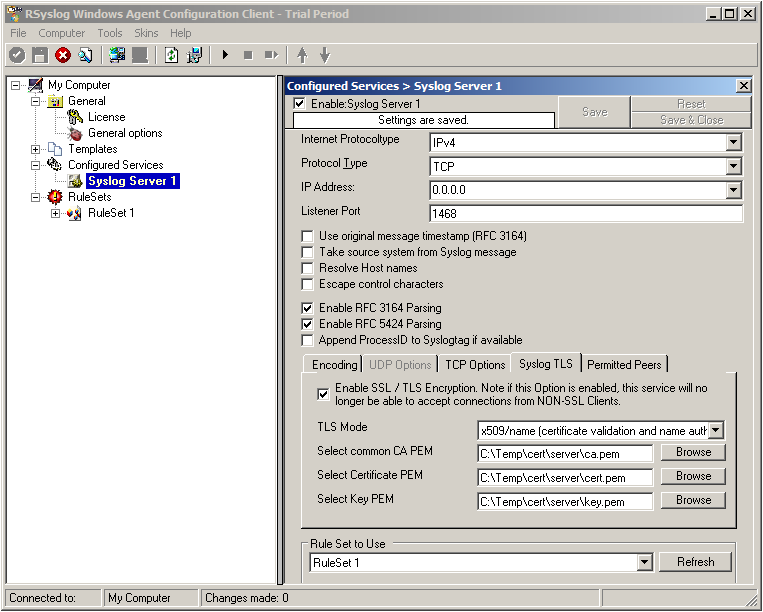
Now check the box for “Enable SSL / TLS Encryption”. The other options become available now. We suggest using x509/name mode, which is obviously the most secure of the available modes.
Below, select your PEMs that you created in Step 1 and submitted to the machine. It should look something like this, though your paths and certificate names might be different.
Now we can go on to the Permitted Peers tab. Here we define the systems that are allowed to send their syslog messages to our relay host. You could also use wildcards for the peers, like *.example.net. Just look below:
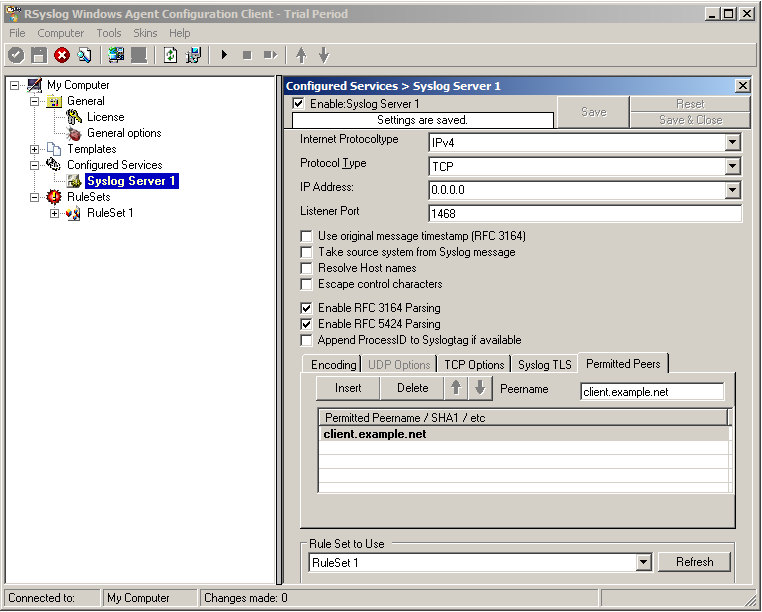
That is basically what we need to set up when receiving syslog via TLS.
Final Thoughts
That is just the setup need for receiving syslog via TLS in RSyslog Windows Agent. This is, as we already mentioned before, for a setup where the RSyslog Windows Agent is used as a relay. You could also apply TLS syslog to the outgoing syslog traffic, but that is not what we wanted to show here.