
Receiving CEE enhanced syslog in rsyslog
We want to receive syslog messages from another system that contain Windows Events. The messages are sent in the CEE enhanced format. The syslog messages should be stored in a database to be reviewed with Adiscon LogAnalyzer.
Things to think about
For the basics, we need at least a listener for UDP or TCP, depending on what you are using. We will configure both for now. As additional modules, we will need mmjsonparse, which has been introduced in v6. And in addition the output module for a MySQL database.
To enable the modules, we need some templates.
Note, that the receiver ports you specify must match the ports on the sending machines.
Config Statements
# modules
$ModLoad imuxsock # provides support for local system logging
$ModLoad imklog   # provides kernel logging support (previously done by rklogd)
$ModLoad immark  # provides --MARK-- message capability
$ModLoad mmjsonparse
$ModLoad ommysql
$ModLoad imudp
$ModLoad imtcp
# provides UDP syslog reception
$UDPServerRun 514
# provides TCP syslog reception
$InputTCPServerRun 10514
# templates
$template database,"insert into systemevents (DeviceReportedTime, FromHost, EventLogType, EventSource, EventID,
EventCategory, EventUser, Facility, Priority, Message) values ('%timereported:::date-rfc3339%', '%$!source%',
'%$!nteventlogtype%', '%$!sourceproc%', '%$!id%', '%$!categoryid%', '%$!user%', '%syslogfacility%',
'%syslogpriority%', '%$!msg:::space-cc%')",SQL
# actions *.* :mmjsonparse: & :ommysql:mysqlserver,database,user,password;database
How it works
First of all, we have the modules being loaded. In addition to the modules needed for local logging, we have loaded the input modules for UDP and TCP syslog.
The next part will enable the listeners. For UDP we use the default port 514. For TCP we use port 10514. Please note, that the senders MUST match the respective port.
The third step is to create a template. You can see it at as 4 lines here, but it really is a single line. mmjsonparse will take messages and process them. It will automatically detect the CEE enhanced json format an create custom properties with the name fields in the message and fill it the available content. But, to use it for a database insert, we need a custom insert statement. As you can see, the most important fields are present. These fields should already be available in the database that is used by Adiscon LogAnalyzer. We now only need to tell rsyslog, which database field will be filled with which field from the json message.
The format differences are important. Some fields will be filled with information from the syslog header, like the timestamp, facility and priority. Thus we can use the regular properties. The properties from the json message always need to start with “$!”. And for the msg property, we will additionaly use the space-cc option. This will strip line feeds from multiline messages.
Finally we have the actions. The first action “*.* :mmjsonparse:” will be applied to all messages here, though it will not be able to parse messages from the local log socket. This calls the mmjsonparse module to parse the message and fill the fields as mentioned before. The second line holds the output to mysql. We extended the chain of actions by “&” instead of a filter.
Important notes
The most crucial part is the template. If the template is not correct, the whole action chain will not work. Or it will work at least not correctly. Though, the above template should work fine with most Windows Events, it might be necessary to alter the template for other message types and database structures.
Rsyslog Windows Agent Released
The rsyslog Windows agent enables customers to integrate Windows Event Logs into their central rsyslog-based logging system. Even more, it supports acting as a syslog relay as well. This enables small branch offices only runnig Windows to provide local syslog sources to the central server as well.
We have released the first full-featured version of this product today. It is based on Adiscon’s mature suite of Windows-to-syslog tools. Most importantly, it provides the ability to fully extract Windows Event Log data, including local resolution of user IDs, SIDs, GUIDs and similiar objects. It not only supports the current Windows Event Log format but also the legacy (pre Windows-2008/Vista) event log system. The technology behind this tool is already in use at thousands of customer sites for many years (in the form of, for example, EventReporter and other Adiscon products).
The rsyslog Agent for Windows has been highly optimized for use with rsyslog at the back end. For example, it supports mutually-authenticated, TLS encrypted syslog as well as the RELP protocol for reliable delivery. Also, it provides an initial implementation of cee-enhanced syslog, and is the world’s first-ever solution to do so (details can be found in the configuration guide for cee-enhanced syslog).
By purchasing rsyslog Agent for Windows customers not only get first class event log integration, they also help fund further improving the rsyslog solution as whole. The package even contains limited rsyslog professional services.
A trial version can be downloaded from the rsyslog Windows agent page.
rsyslog 5.8.8 (v5-stable) released
This is a bug-fixing release. It fixes the wrong computed facility and severity in imklog and a problem with rsyslog aborting on startup if no binary to execute was configured for omprog.
ChangeLog:
http://www.rsyslog.com/changelog-for-5-8-8-v5-stable/
Download:
http://www.rsyslog.com/rsyslog-5-8-8-v5-stable/
As always, feedback is appreciated.
Best regards,
Florian Riedl
Changelog for 5.8.8 (v5-stable)
Version 5.8.8 [V5-stable] 2012-03-05
- bugfix: omprog made rsyslog abort on startup if not binary to execute was configured
- bugfix: imklog invalidly computed facility and severity
closes: http://bugzilla.adiscon.com/show_bug.cgi?id=313 - improves interop with systemd journal
rsyslog 5.8.8 (v5-stable)
Download file name: rsyslog 5.8.8 (stable)
rsyslog 5.8.8 (stable)
md5sum: bbce9d3c4ef68ccb945efb4e856e0eaf
Author: Rainer Gerhards (rgerhards@adiscon.com)
Version: 5.8.8 File size: 2.387 MB
RSyslog Windows Agent and CEE
The Rsyslog Windows Agent comes with support for the new CEE enhanced format out of the box. It is designed to work flawlessly with all components from the Adiscon product lines and other CEE enhanced-enabled products. And it is one of the first products to support the Project Lumberjack at all. If you do not know what CEE enhanced is good for, it might be wise to watch our introduction into CEE.
In this guide, we will show the necessary steps to create a configuration for the RSyslog Windows Agent to output CEE enhanced conform log messages. The setup itself is very simple and does not differ a lot from other basic setups. In the end we will have a configuration, that will poll Windows EventLogs and forward them via syslog in CEE enhanced format to another syslog server.
Step 1: Setting up the ruleset and action.
1. First we define a new rule set. Right-click “Rulesets”. A pop up menu will appear. Select “Add Rule Set” from this menu.
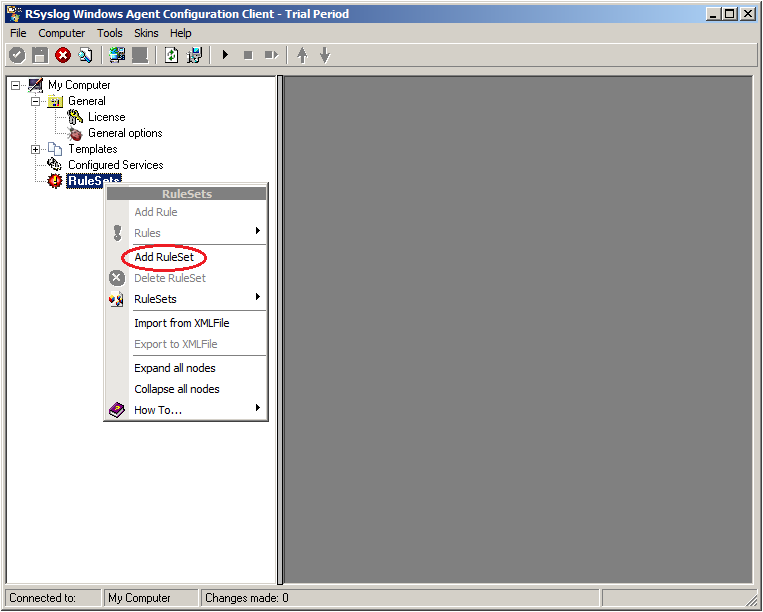
2. Then, a wizard starts. Change the name of the ruleset to whatever name you like. We will use “Forward syslog” in this example. The screen looks as follow:
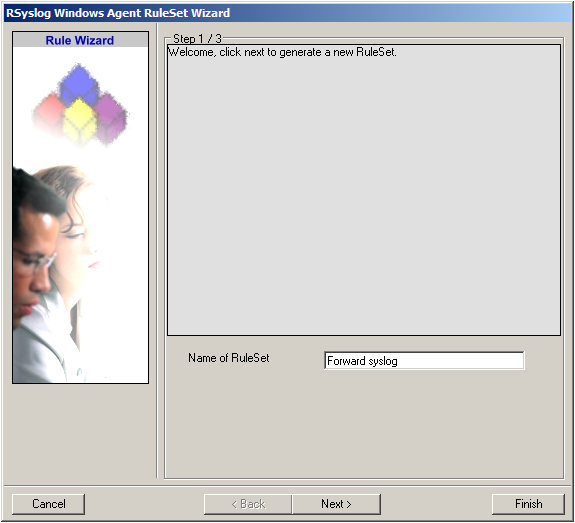
Click “Next” to go on with the next step.
3. Select only Forward via Syslog. Do not select any other options for this sample. Also, leave the “Create a Rule for each of the following actions” setting selected. Click “Next”. You will see a confirmation page. Click “Finish” to create the rule set.

4. As you can see, the new Rule Set “Forward syslog” is present. Please expand it in the tree view until the action level of the “Forward syslog” Rule and select the “Forward syslog” action to configure.
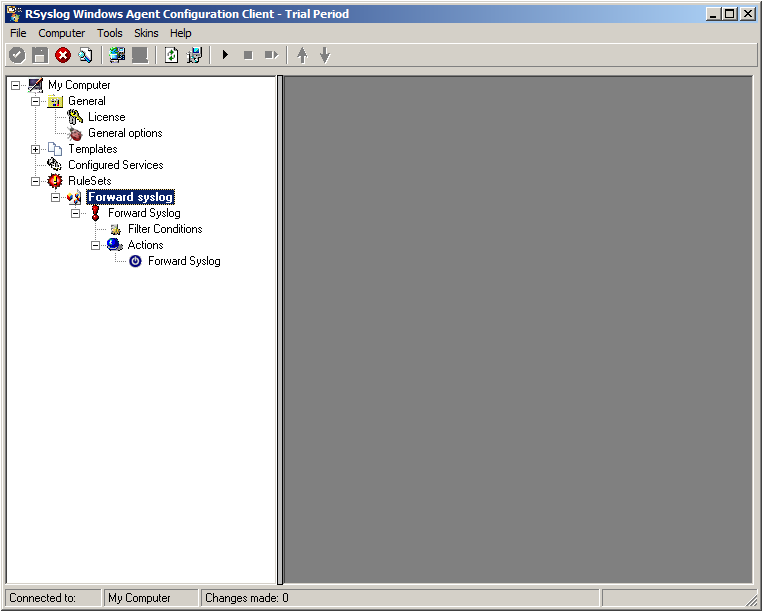
5. Configure the “Forward via Syslog” Action
Insert the IP of your syslog server into the field “Syslog Server”. You can change the port if needed as well. We will keep it on the default port 514. You could also change to protocol type to TCP for example. Attention RSyslog Windows Agent and your syslog server must use the same port and the same protocol.
But you need to change the “Used Message Format”. Click on the dropdown menu to see the options and choose “Use CEE enhanced Syslog Format”.
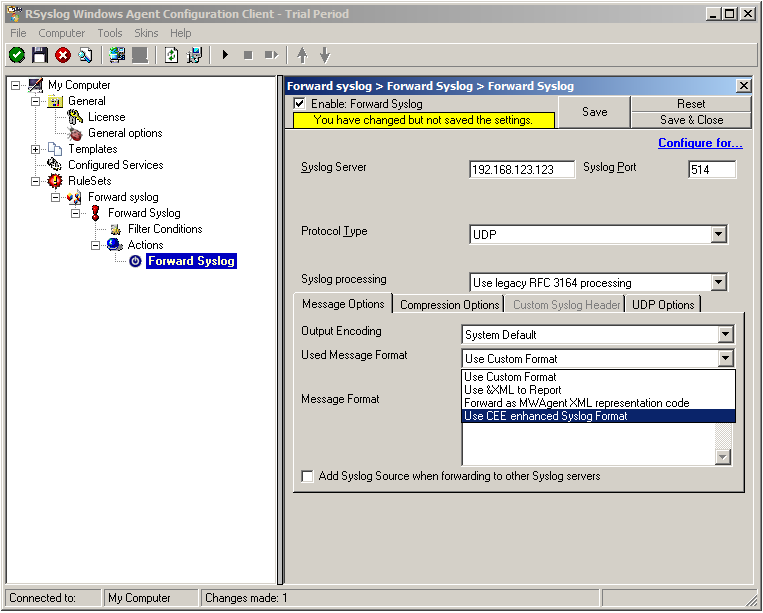
The configuration for syslog forwarding should now look like this:
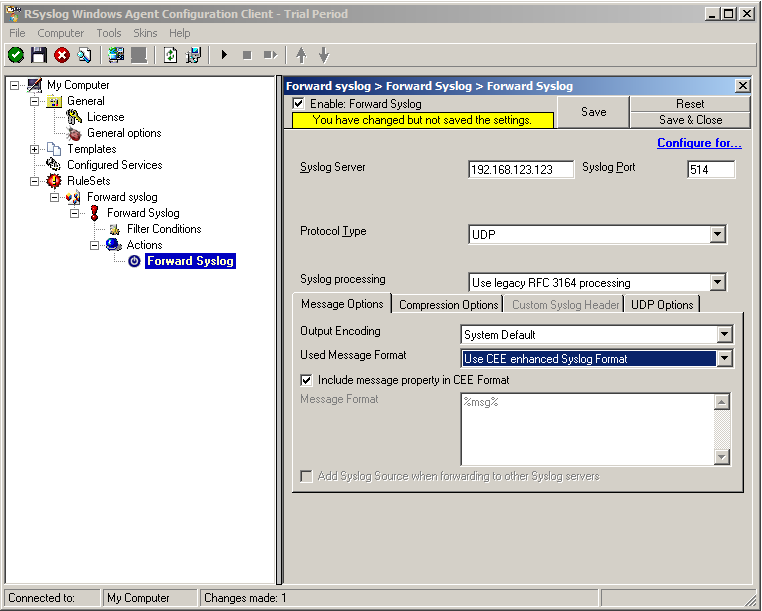
6. Finally, make sure you press the “Save” button – otherwise your changes will not be applied.
Step 2: Setting up the EventLog Monitor V2.
Note: This guide explains how to set up the EventLog Monitor V2 Service for Windows Vista/z/2008. These steps are not applicable if you are using Windows XP/2000/2003. In that case, please use the regular EventLog Monitor.
1. First, right click on “Services”, then select “Add Service” and then “Event Log Monitor V2”:
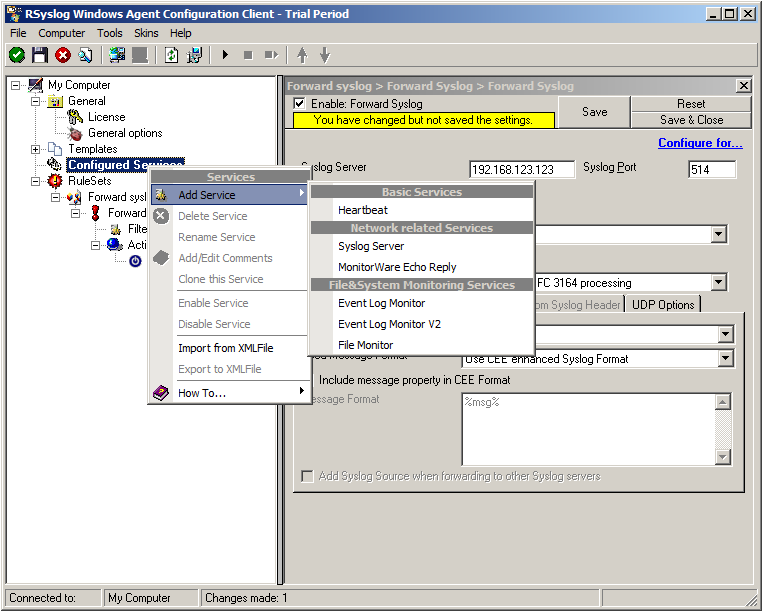
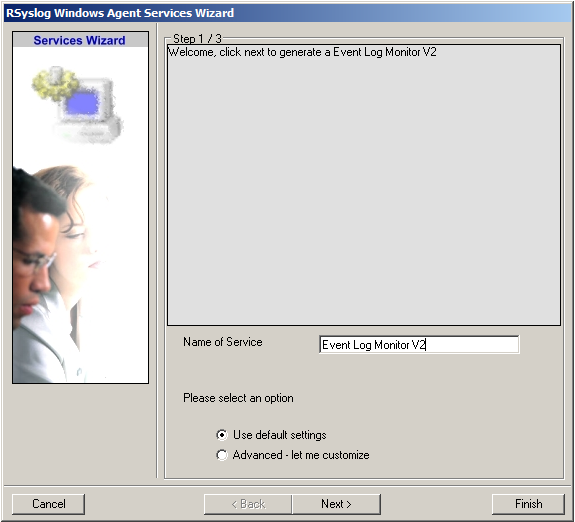
Again, you can use either the default name or any one you like. We will use the default name in this example. Leave the “Use default settings” selected and press “Finish”, as we are not changing any other settings right now.
2. Now, you will see the newly created service beneath the “Services” as part of the tree view. To check its parameters, select it:
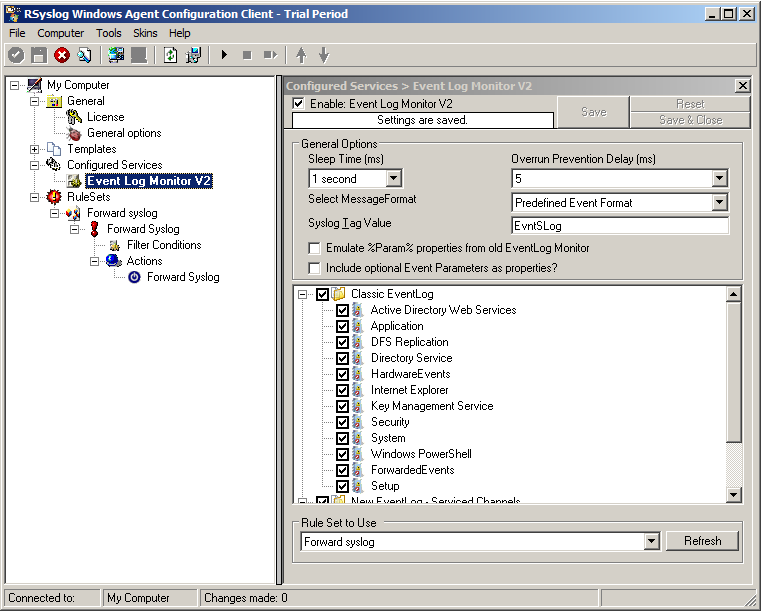
As you can see, the service automatically checks for all present EventLogs. You can now select or disable certain logs or change some of their properties.
Note: The ruleset “Forward Syslog” has been automatically assigned as the ruleset to use. By default, the wizard will always assign the first rule set visible in the tree view to new services.
Step 3: Starting the Service.
5. The last step is to save the changes and start the service. This procedure completes the configuration of the syslog server.
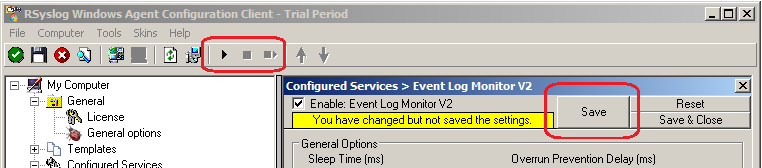
The Service cannot dynamically read changed configurations. As such, it needs to be restarted after such changes. In our sample, the service was not yet started, so we simply need to start it. If it already runs, you need to restart it.
We are now finished. You should now receive the Eventlog messages on your syslog server in CEE enhanced format.
What is CEE-enhanced syslog?
In this (~5 minutes) Video Rainer Gerhards describes what cee-enhanced syslog actually is and how it works. This format will probably become very important in the future. Continue reading “What is CEE-enhanced syslog?”
TCP syslog / RFC5424 log4j appender
As part of a training project, we created a small log4j appender supporting TCP syslog and RFC5424. Most importantly, it is capable of formatting stack traces as a single syslog messages (NOT the usual bunch of multiple malformed messages). The work is based on the syslog4j implementation, which did not work for us (our fault? ;)) and so we extended this framework. Note that the code has never been used in practice by us, so there may be some risk associated – but that should be fairly easy to asses, given that the source is pretty small.
The download of the RFC5424 syslog tcp appender contains it all: doc, jar files as well as the source.
Feedback and usage reports are appreciated, please send mail to ugerhards@adiscon.com (if you run into troubles, you can also use the same email address to discuss the problem!).
Using TLS for receiving log messages
In this guide, we want to describe, how to use the RSyslog Windows Agent with TLS encrypted syslog. This specific part will describe the setup steps for receiving syslog from a Linux rsyslog installation. First, as a preliminary, you should read the guide from the rsyslog documentation for “Encrypting Syslog Traffic with TLS (SSL)”. It describes in details the overall setup, how certificates are generated and how the clients and server need to be set. It is strongly suggested to be read as a whole.
Since we will receive syslog messages via TLS and we can only forward messages via syslog (with TLS or without) the whole setup will basically resemble what we described in our guide for a syslog relay. Therefore, we will only show how to setup the syslog service.
Step 1: Machine certificates
The easiest way to create the machine certificates is as described in the Linux guide above. So please create a machine certificate as described here: Generating Machine Certificates
Please provide your Windows machine with those certificates. Make sure, that they are safe and cannot get into someones’ hands.
Step 2: Setting up the ruleset and action.
Usually we start by creating the ruleset, rule and action. The reason lies in the configuration structure. So we will first create the mentioned items. In the end, we will have a basic rule with no particular filter and a forward via syslog action. That means, that all messages will be forwarded to a central host.
Step 3: Create a Syslog Server Service
Now we need to create a syslog server service.
To create it, right click on “Services”, then select “Add Service” and the “Syslog Server”:
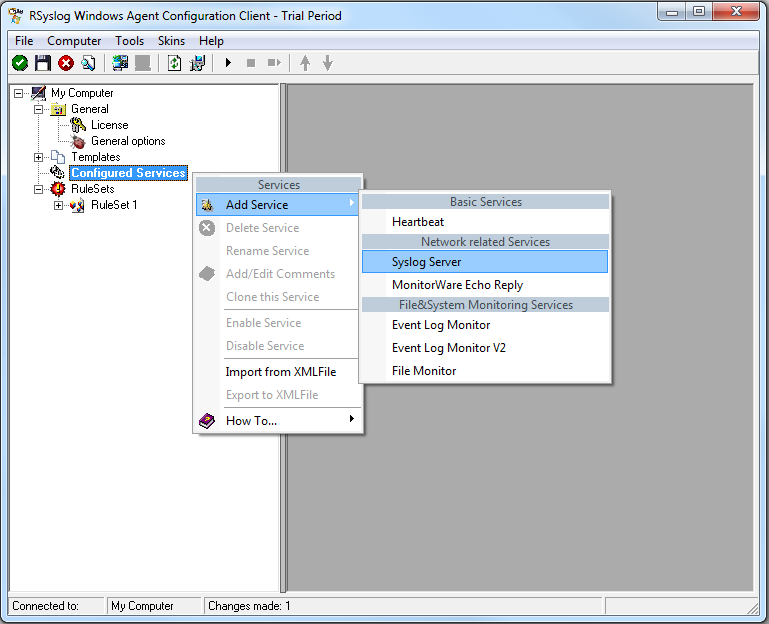
Once you have done so, a new wizard starts:
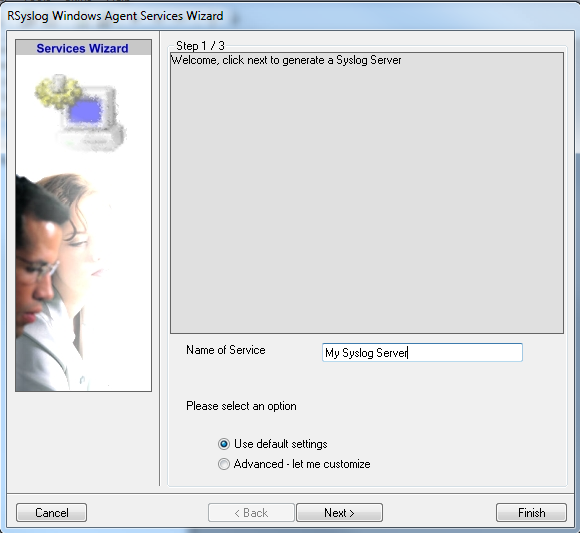
Again, you can use either the default name or any one you like. We will use “My Syslog Server” in this example. Leave the “Use default settings” selected and press “Next”:
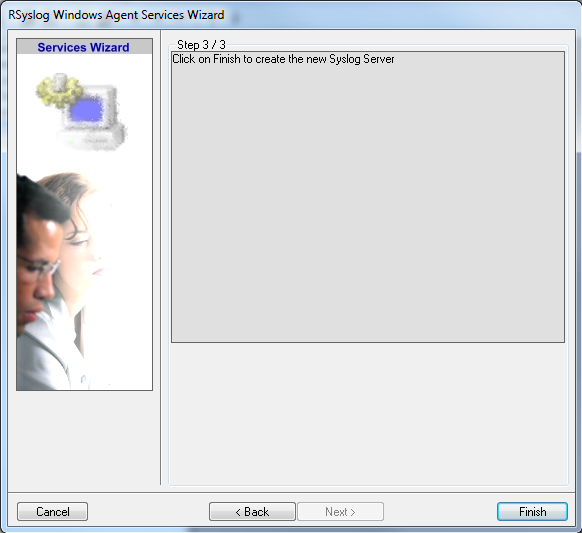
As we have used the default, the wizard will immediately proceed with step 3, the confirmation page. Press “Finish” to create the service. The wizard completes and returns to the configuration client. There, you will see the newly created service beneath the “Services” part of the tree view:
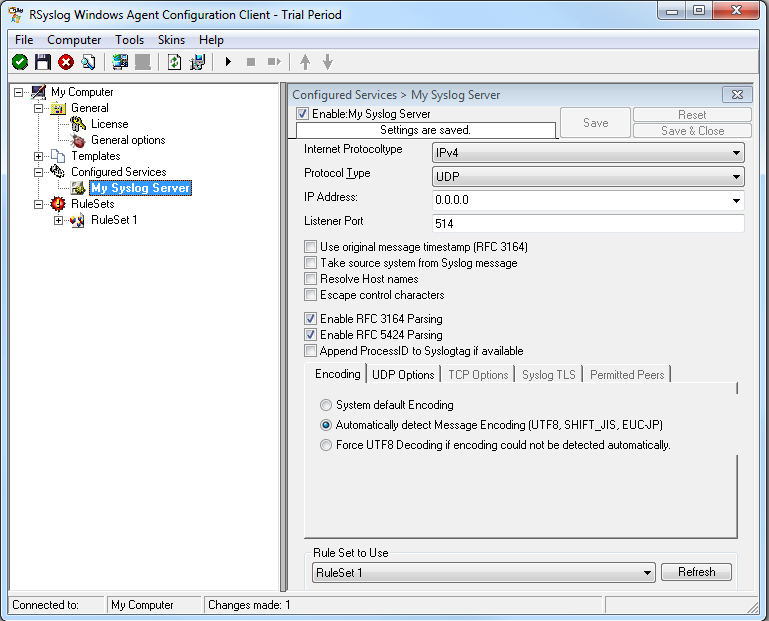
As you can see, the service has been created with the default parameters. As such, it operates as a RFC compliant standard Syslog server. But, we still need to make some changes so we can receive TLS syslog.
Step 4: Changing to TLS
First we need to change the protocol type. Change it to TCP. TLS syslog is not available with UDP. If you want, you can change the port to what your clients use for sending.
Now in the lower part of the configuration window click on the tab Syslog TLS. This is where the important TLS settings will be made.
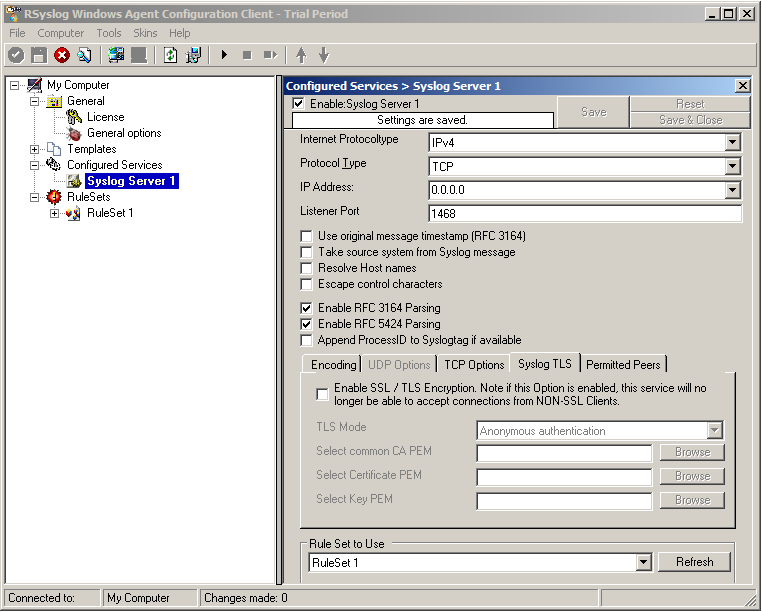
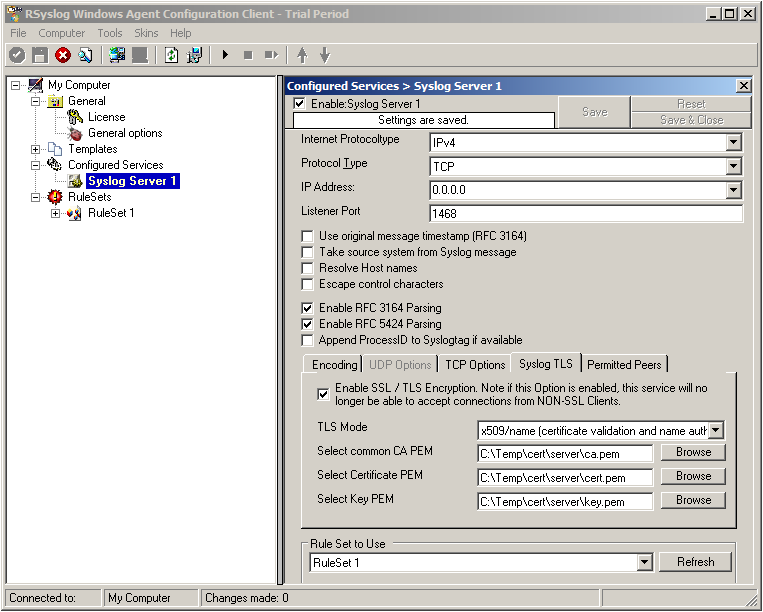
Now check the box for “Enable SSL / TLS Encryption”. The other options become available now. We suggest using x509/name mode, which is obviously the most secure of the available modes.
Below, select your PEMs that you created in Step 1 and submitted to the machine. It should look something like this, though your paths and certificate names might be different.
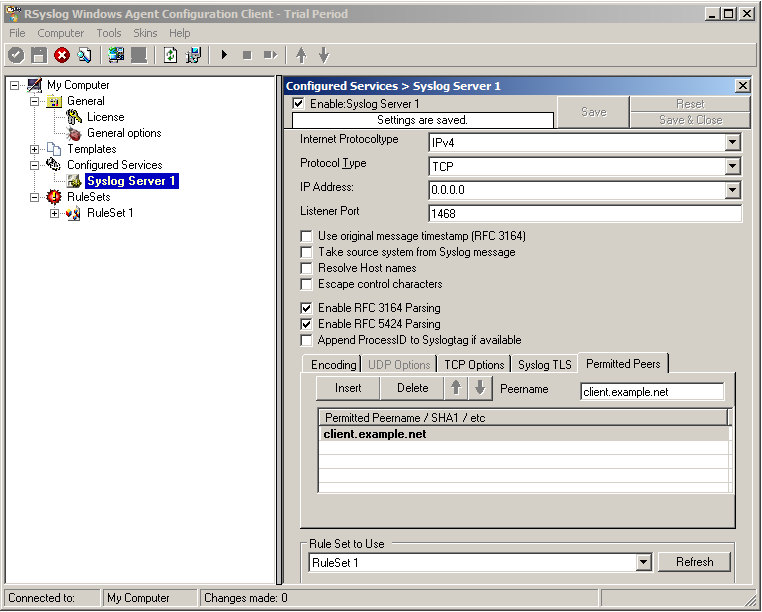
Now we can go on to the Permitted Peers tab. Here we define the systems that are allowed to send their syslog messages to our relay host. You could also use wildcards for the peers, like *.example.net. Just look below:
That is basically what we need to set up when receiving syslog via TLS.
Final Thoughts
That is just the setup need for receiving syslog via TLS in RSyslog Windows Agent. This is, as we already mentioned before, for a setup where the RSyslog Windows Agent is used as a relay. You could also apply TLS syslog to the outgoing syslog traffic, but that is not what we wanted to show here.
rsyslog 6.3.7 (v6-devel) released
With this release, all builtin actions support the new v6 config format. Also, the release contains much enhanced statistics counters and various bug fixes. Recommended for all users of the v6-devel branch.
ChangeLog:
http://www.rsyslog.com/changelog-for-6-3-7-v6-devel/
Download:
http://www.rsyslog.com/rsyslog-6-3-7-v6-devel/
As always, feedback is appreciated.
Best regards,
Florian Riedl