
rsyslog 6.2.0 (v6-stable)
Download file name: rsyslog 6.2.0 (stable)
rsyslog 6.2.0 (stable)
md5sum: 03e237abaa5d47f92c6e655f92f22532
Author: Rainer Gerhards (rgerhards@adiscon.com)
Version: 6.2.0 File size: 2.41 MB
Using RSyslog Windows Agent as a syslog relay
This time we want to use the RSyslog Windows Agent as a syslog relay. The article itself will be described in two larger steps. Both steps contain some substeps which will be shown in detail in one of the smaller articles. We assume, that no basic configuration is currently available.
This configuration can be used to attach several sites to a larger log network. Imagine you have a central log server at your company in your central facility. You have some branch offices around the country and their log messages should be stored in the central location as well. Now it wouldn’t be very clever to have every computer or device at these sites forward their log messages directly. It would be better to have a central machine at the site, that works as a relay. It will receive all the log messages via syslog and then again forward the messages to the central server. Cascading setups like this ensure a part of the reliability, stability and security of your infrastructure, by keeping the connection count low and lowering the amount of machines using the network.
Basically, the configuration of RSyslog Windows Agent consists of 3 parts.
1. A so-called service which generates the log data to be processed by, for example, a syslog server.
2. Rules with Filters. Filters give you the power to decide which log messages are important enough to be kept or not.
3. The action that has to be taken. In our case, forwarding the syslog messages.
Step 1: Setting up the ruleset and action.
Usually we start by creating the ruleset, rule and action. The reason lies in the configuration structure. So we will first create the mentioned items. In the end, we will have a basic rule with no particular filter and a forward via syslog action. That means, that all messages will be forwarded to a central host.
Step 2: Setting up the service.
Now we will set up the service. As we already know, we want to create a syslog server. Therefore we need the syslog server service. It will create a listener, that is listening to syslog traffic on a specific port. You can choose the protocol, like TCP or UDP as well.
That’s it, you are already finished. Easy wasn’t it? Now you should be able to receive syslog messages from different devices and forward them from only one machine to your central syslog server.
Forward Windows Eventlogs with RSyslog Windows Agent
This article will describe, how to use the RSyslog Windows Agent to forward the local Windows EventLog messages. This article will show the different steps. For this we take you to several smaller guides, that show you, how to setup each part. We assume, that no basic configuration is currently available.
A configuration like this is needed very often and basically on any Windows machine that should forward it’s logs. Therefore, this reflects the default configuration after installing the RSyslog Windows Agent. It can be used on machines in your local network or on a site to forward from the single machines to a central relay server, which then forwards all messages to your company’s central log server.
Basically, the configuration of RSyslog Windows Agent consists of 3 parts.
1. A so-called service which generates the log data to be processed by, for example, polling the Windows EventLog.
2. Rules with Filters. Filters give you the power to decide which log messages are important enough to be kept or not.
3. The action that has to be taken. In our case, forwarding the syslog messages.
Step 1: Setting up the ruleset and action.
Usually we start by creating the ruleset, rule and action. The reason lies in the configuration structure. So we will first create the mentioned items. In the end, we will have a basic rule with no particular filter and a forward via syslog action. That means, that all messages will be forwarded to a central host.
Step 2: Setting up the service.
Now we will set up the service. There is one thing to mention first. You need to know choose one of the latter links according to your operating system. This is important, or the setup might not work properly. We have 2 different versions of the EventLog Monitor. Here is a small list in which you can see, which service fits which operating systems.
1. EventLog Monitor: 2000, XP, 2003
2. EventLog Monitor V2: Vista, 2008, 7, 10
This is important. EventLog Monitor V2 will NOT work on the older operating systems. In contrary, the older EventLog Monitor will work on the newer systems, but might not work correctly, so it is advised to used the optimized EventLog Monitor V2. This is due to the massive changes that Microsoft introduced to the EventLog system with Vista.
That’s it, you are already finished. Easy wasn’t it? Now you should receive your EventLog messages on your central syslog server.
How To setup File Monitor Service
How To setup File Monitor Service
Article created 2011-12-29 by Florian Riedl.
1. First, right click on “Services”, then select “Add Service” and the “File Monitor”.
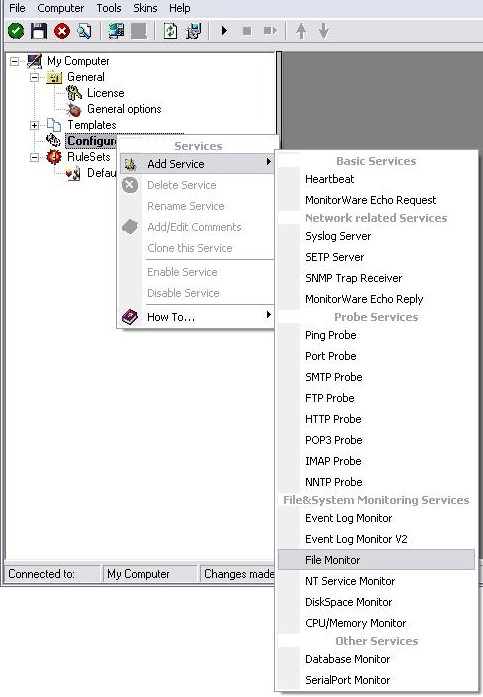
Once you have done so, a new wizard starts.
2. Again, you can use either the default name or any one you like. We will use “My FileMonitor” in this sample. Leave the “Use default settings” selected and press “Next”.
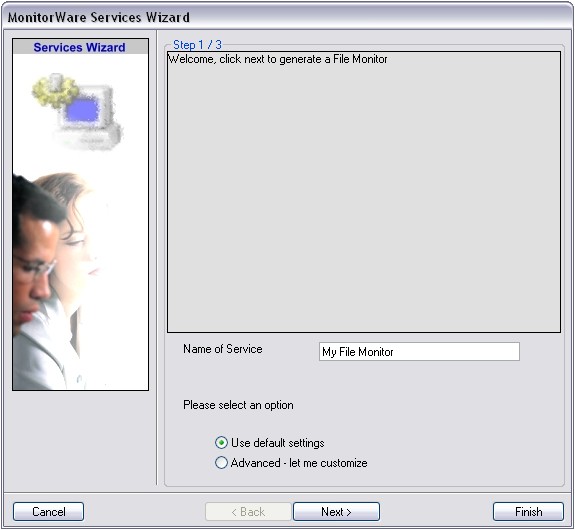
3. As we have used the default, the wizard will immediately proceed with step 3, the confirmation page. Press “Finish” to create the service. The wizard completes and returns to the configuration client.
4. Now, you will see the newly created service beneath the “Services” part of the tree view. To check its parameters, select it:
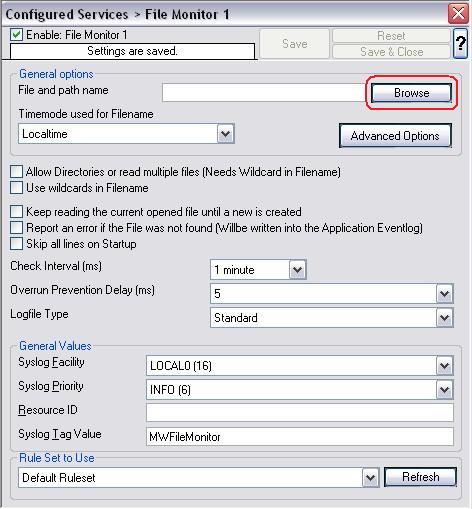
As you can see, the service has been created with the default parameters.
5. To make this Service work, we need to select a text file as source. To achieve this, click on the “Browse” button as you can see it marked in the screen above. A browsing window will open up. Move through your Files and choose one that you would like to monitor. For this example I chose a text file created by MonitorWare Agent.
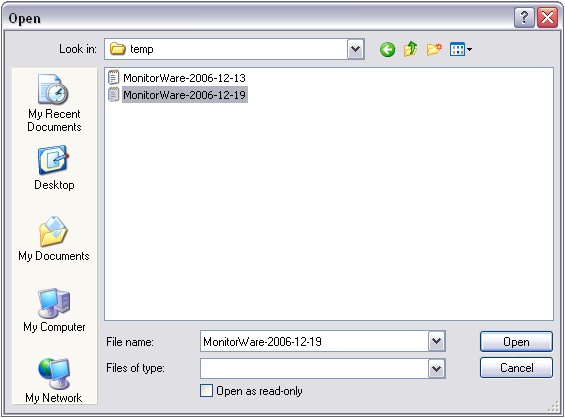
6. Now we still need to set a ruleset for this service to work with. Since we have no configured ruleset available at the moment, simply use the Default Ruleset, if it’s not being used automatically.
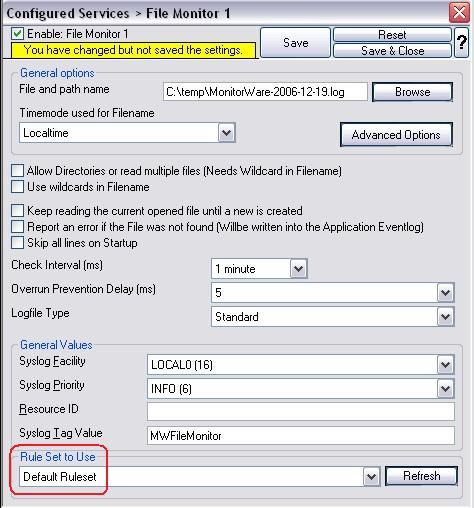
7. Last, save the changes and then restart the application. This procedure completes the configuration of the FileMonitor Service.
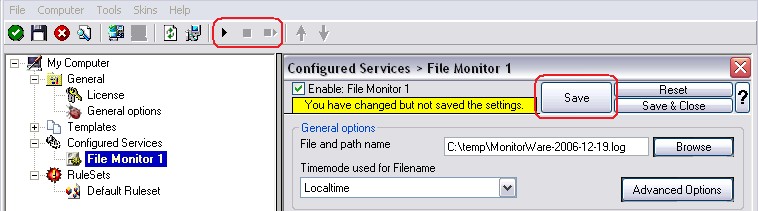
The Application cannot dynamically read changed configurations. As such, it needs to be restarted after such changes.
rsyslog 5.9.4 (v5-devel)
Download file name: rsyslog 5.9.4 (devel)
rsyslog 5.9.4 (devel)
md5sum: 408f59536a10f34a73e3af000ca81639
Author: Rainer Gerhards (rgerhards@adiscon.com)
Version: 5.9.4 File size: 2.382 MB
rsyslog 5.9.4 (devel) released
This release provides support for “trusted properties”, which may enhance overall system security. This is a new concept and feedback on it is appreciated. For more details on trusted properties, please visit
http://www.rsyslog.com/what-are-trusted-properties/
or Rainer’s blog post with some more background about trusted properties:
http://blog.gerhards.net/2011/11/trusted-properties-in-rsyslog.html
In addition to this feature, we have reduced dependency on libgcrypt and fixed some bugs.
ChangeLog:
http://www.rsyslog.com/changelog-for-5-9-4-v5-devel/
Download:
http://www.rsyslog.com/rsyslog-5-9-4-devel/
As always, feedback is appreciated.
Best regards,
Florian Riedl
Changelog for 5.9.4 (v5-devel)
Version 5.9.4 [V5-DEVEL], 2011-11-29
- imuxsock: added capability to “annotate” messages with “trusted information”, which contains some properties obtained from the system and as such is sure to not be faked. This is inspired by the similiar idea introduced in systemd. removed dependency on gcrypt for recently-enough GnuTLS
see: http://bugzilla.adiscon.com/show_bug.cgi?id=289 - bugfix: imuxsock did no longer ignore message-provided timestamp, if so configured (the *default*). Lead to no longer sub-second timestamps.
closes: http://bugzilla.adiscon.com/show_bug.cgi?id=281 - bugfix: omfile returns fatal error code for things that go really wrong previously, RS_RET_RESUME was returned, which lead to a loop inside the rule engine as omfile could not really recover.
- bugfix: rsyslogd -v always said 64 atomics were not present
thanks to mono_matsuko for the patch
First Impression of Journald
We got a couple of questions on the planned new logging system that shall come with systemd. Rainer Gerhards, rsyslog’s development lead, has taken a quick look at journald and posted about his first impression. Have a look at his blog post journal and rsyslog if you are interested in how we think rsyslog is affected. In the mean time, there is also a description of why we think journald’s log chaining is simply broken and conveys a false sense of security.
rsyslog 6.3.6 (v6-devel) released
We have just released a new development version of rsyslog v6. This is primarily a maintenance release fixing a really annoying problem with reading the config file.
ChangeLog:
http://www.rsyslog.com/changelog-for-6-3-6-v6-devel/
Download:
http://www.rsyslog.com/rsyslog-6-3-6-v6-devel/
As always, feedback is appreciated.
Best regards,
Florian Riedl
rsyslog 6.3.6 (v6-devel)
Download file name: rsyslog 6.3.6 (devel)
rsyslog 6.3.6 (devel)
md5sum: 758bb56b6f7d46cef49dd70fddf825dc
Author: Rainer Gerhards (rgerhards@adiscon.com)
Version: 6.3.6 File size: 2.47 MB