
rsyslog Windows Agent 2026 — New major release, new licensing, new release cycle
Overview
rsyslog Windows Agent now ships on the 26.07 line (July 2026). This release line uses calendar-based YY.MM version numbers, a monthly update cadence, a license.alic license file, and a next-generation Configuration Client Preview in the installer.
If you are upgrading from rsyslog Windows Agent 8.x (or earlier), read this article before you deploy. Your existing registration name and numeric license keys do not apply on current builds—you need a new license.alic file from Adiscon.
A new way to read version numbers
Older product lines (through 8.x)
Historically, rsyslog Windows Agent used sequential version numbers that increased independently of the calendar. Different Adiscon products used different leading numbers (WinSyslog 18, EventReporter 19, MonitorWare Agent 15, and so on).
| Component | Legacy (8.x) | New (YY.MM) |
|---|---|---|
| Example | 8.3.0.236 | 26.07 |
| Year part | Sequential major 8 | Calendar year short form 26 (2026) |
| Month part | Feature release (e.g. 3) | Release month 07 = July |
Current YY.MM versions
Adiscon changed to calendar-based version numbers. In 26.07, 26 means 2026 and 07 means July. There are no missing intermediate product releases between the last 8.x builds and 26.07.
Later monthly builds in the same year continue as 26.08, 26.09, and so on. When the calendar year rolls forward, the year part advances (for example to 27.01).
New release cycle: monthly updates
Adiscon is aligning rsyslog Windows Agent with a predictable monthly rhythm:
- YY = calendar year (26 = 2026)
- MM = release month (01 = January, 07 = July, 12 = December)
- Regular monthly builds with fixes and improvements during the year
The current general-availability line for this announcement is 26.07 (July). You can plan upgrades knowing that 26.08, 26.09, and so on will arrive through the year. Detailed change lists belong in release notes, not in this overview.
Licensing: from name + keys to a license file
The largest operational change for upgrades from rsyslog Windows Agent 8.x is licensing. Older builds used a registration name and numeric license keys. Current builds use a license.alic file applied under General → License in the configuration client.
| Topic | Older product lines | Current builds |
|---|---|---|
| What you apply | Registration name + numeric license keys | license.alic file |
| Where in the client | License key fields | General → License |
| Optional path | N/A | szLicenseV2Path (path to the file) |
Important: Keys from rsyslog Windows Agent 8.x do not apply on current builds. Contact Adiscon support or sales to obtain a new license.alic for your edition.
Licensing
License file details and how to apply it
What you use now
| File name | license.alic |
| Default location | %ProgramData%\Adiscon\RSyslogAgent\license.alic |
| Configuration | szLicenseV2Path — optional path to the file (path only, not license text) |
| Client location | General → License |
Editions (Basic, Professional, Enterprise) still exist as commercial labels. Product limits such as Remote Event Log and client connections are enforced from entitlements in the license file. The main window status bar shows license status (for example, the licensed organization). A version mismatch between the license file and the installed service may show a warning banner until you apply a matching license.
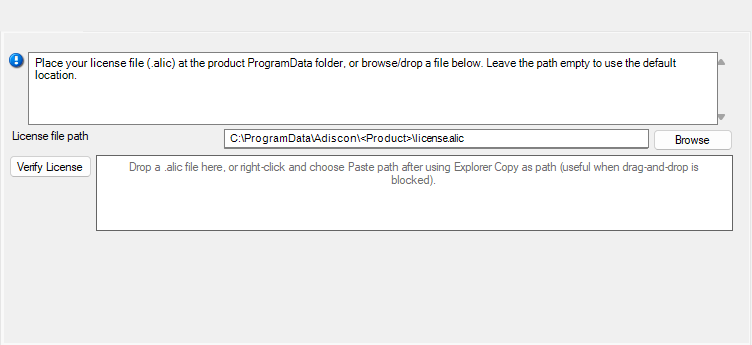
How to apply the license file
- Obtain license.alic from Adiscon for rsyslog Windows Agent (correct edition and entitlements).
- Open the configuration client and select General → License.
- Browse for license.alic, drag-and-drop the file, or paste the file path.
- Use Verify License if you want to check the selected file before or after saving.
- Save the configuration.
- Restart the service so the updated license state is applied.
Configuration snippet (optional)
Administrators using file-based configuration may set an explicit path when they do not use the default location:
szLicenseV2Path C:\ProgramData\Adiscon\RSyslogAgent\license.alic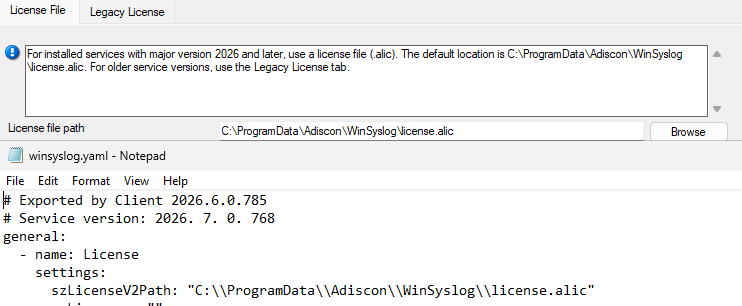
Frequently asked questions (licensing)
Do my 8.x license keys work on current builds?
No for activating current rsyslog Windows Agent builds. Current builds require a license.alic file. Contact Adiscon to obtain one.
Can I use an older product version with my current license?
Yes. Your license can cover older product versions. If the older version does not support license files, contact Adiscon support or sales and request a free license key for that product version.
Can I copy license.alic from another product?
No. Each license is issued for specific product SKUs (RSyslog-WA-Basic, RSyslog-WA-Pro, RSyslog-WA-Enter). The service rejects mismatched products.
What if license.alic is missing?
Without a valid license file, the product follows its normal unlicensed or evaluation behavior for that edition. Apply a valid license.alic under General → License, save, and restart the service.
Do I need internet activation?
No for normal operation. The license file is validated on the machine; you do not need online activation for routine use.
Upgrade
Upgrade path and compatibility
Upgrade planning for rsyslog Windows Agent 8.x to current builds should start with a license.alic request before production rollout. Install or upgrade to 26.07 (July) or a later 26.x monthly build.
Note: The rsyslog Windows Agent is Adiscon’s native Windows agent for rsyslog-compatible deployments—it is not the open-source Linux rsyslog project.
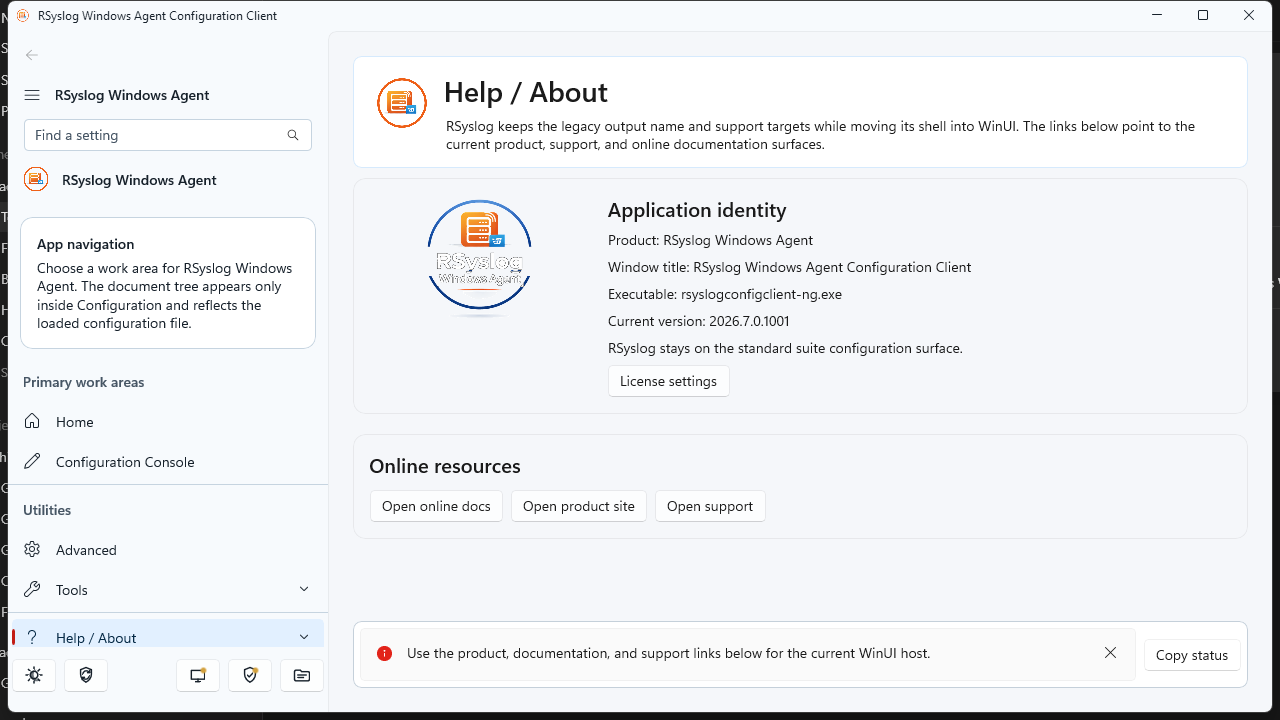
Next-generation Configuration Client Preview
The rsyslog Windows Agent installer for current builds includes two configuration clients:
- Established configuration client — familiar UI, updated for the license file page under General → License.
- Next-generation Configuration Client Preview — modern WinUI-based workbench (adiscon-client-ng), shipped as a preview alongside the classic client.
The preview is intended for early adopters. Both clients target the same service and the same license.alic file. Expect the preview label until Adiscon declares general availability.
What changed between 8.x and current builds (overview)
Current builds are a platform refresh, not a single-feature update. Alongside YY.MM versioning and monthly updates, they introduce a license.alic license file, expanded file/YAML configuration options, operational metrics (disabled by default), installer improvements, and ongoing reliability hardening across listeners, actions, and the core engine. For detailed changes in a specific month build, see the product release notes for 26.07 and later.
rsyslog Windows Agent continues to focus on reliable Windows log ingestion and forwarding in rsyslog-compatible deployments; the current line modernizes how you license, version, and configure the product. This is Adiscon’s Windows agent only—not the Linux rsyslog project.
Frequently asked questions (upgrade)
Where is the license file?
Default: %ProgramData%\Adiscon\RSyslogAgent\license.alic
Is the nextgen client required?
No. It is a preview. The classic configuration client remains supported for applying license.alic.
Where should backup tools copy the license?
Back up license.alic together with your configuration directory under the product’s ProgramData folder.
Next steps
- Existing customers: Contact Adiscon support or sales to request your license.alic before or during upgrade.
- New deployments: Install 26.07 or later, apply license.alic under General → License, verify status, then roll out rules and services as usual.
- Monthly updates: Check release notes for 26.07, 26.08, and subsequent monthly builds.